
Great news for TikTok Shop sellers! EasyParcel can now integrate directly with TikTok Shop, making it easier to manage your orders and deliveries in one place. Once connected, your TikTok Shop orders can be automatically synced to EasyParcel, allowing you to compare courier rates, book deliveries, print air waybills (AWBs), and track your parcels without manually entering each order. Follow the steps below to connect your TikTok Shop with EasyParcel and get started.
We'll Cover:
Requirements
Before integrating your TikTok Shop store with EasyParcel, please ensure the following requirements are met:
1. Seller Shipping / Seller Own Fleet (SOF) Must Be Enabled
Your TikTok Shop must enable Seller Shipping (Self-Arrange Shipping).
If your shop is using Platform Shipping, TikTok will manage the logistics and shipping label generation. In this case:
- Order details may be masked or restricted.
- External tracking numbers may not be allowed.
- Orders cannot be fulfilled through EasyParcel.
As mentioned in How to apply SOF in TikTok Shop, Seller Own Fleet (SOF) is available for invitation only.
2. Orders Must Be Shipped by Seller
Only orders that are set to Shipped by Seller are eligible for fulfillment via EasyParcel.
This is required because:
- EasyParcel requires access to the buyer's full (unmasked) shipping information.
- You must be allowed to manually update the tracking number back to TikTok Shop.
- Tracking synchronization depends on seller-managed shipping.
Setting up Integration
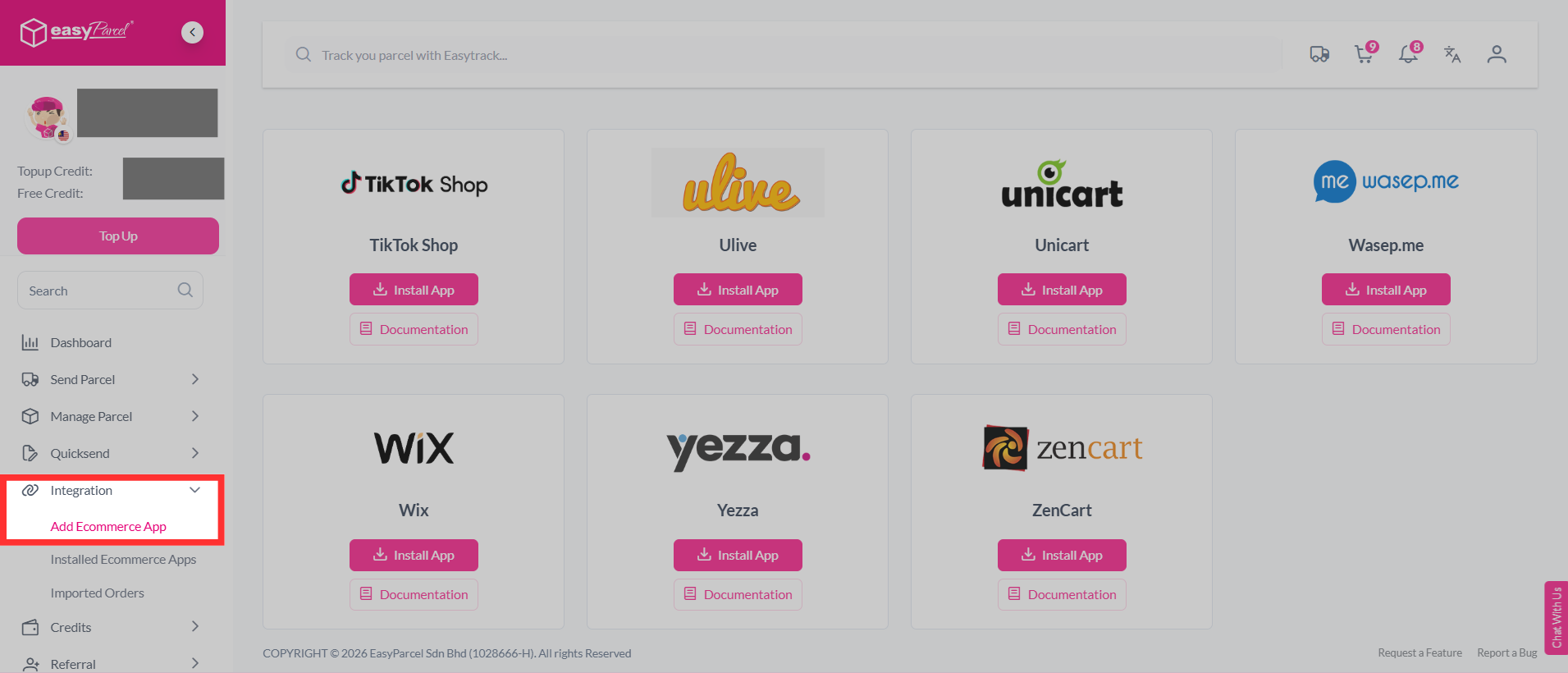
Step 1: From the dashboard, navigate to "Integration" and select it. Then, click "Add Ecommerce App".
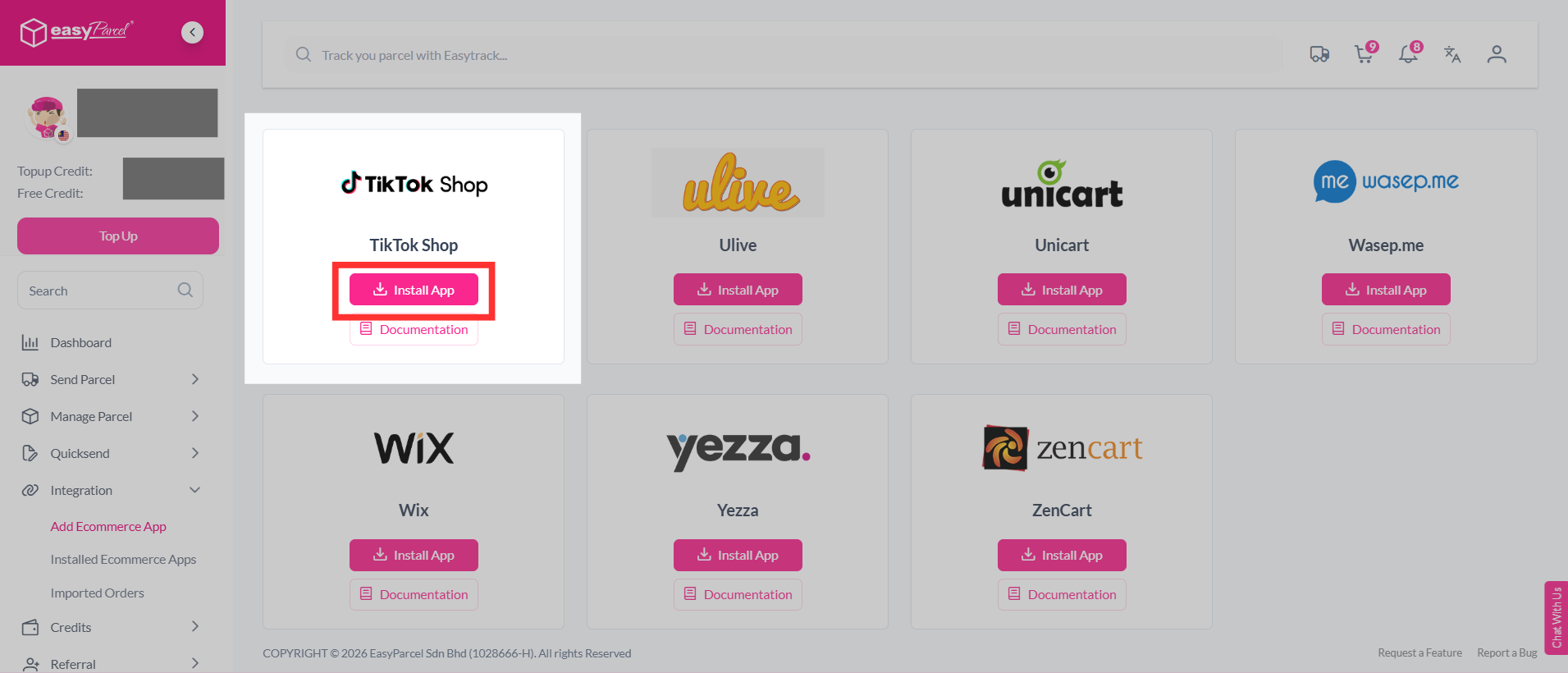
Step 2: Find "TikTok Shop" from the list, and click "Install App".
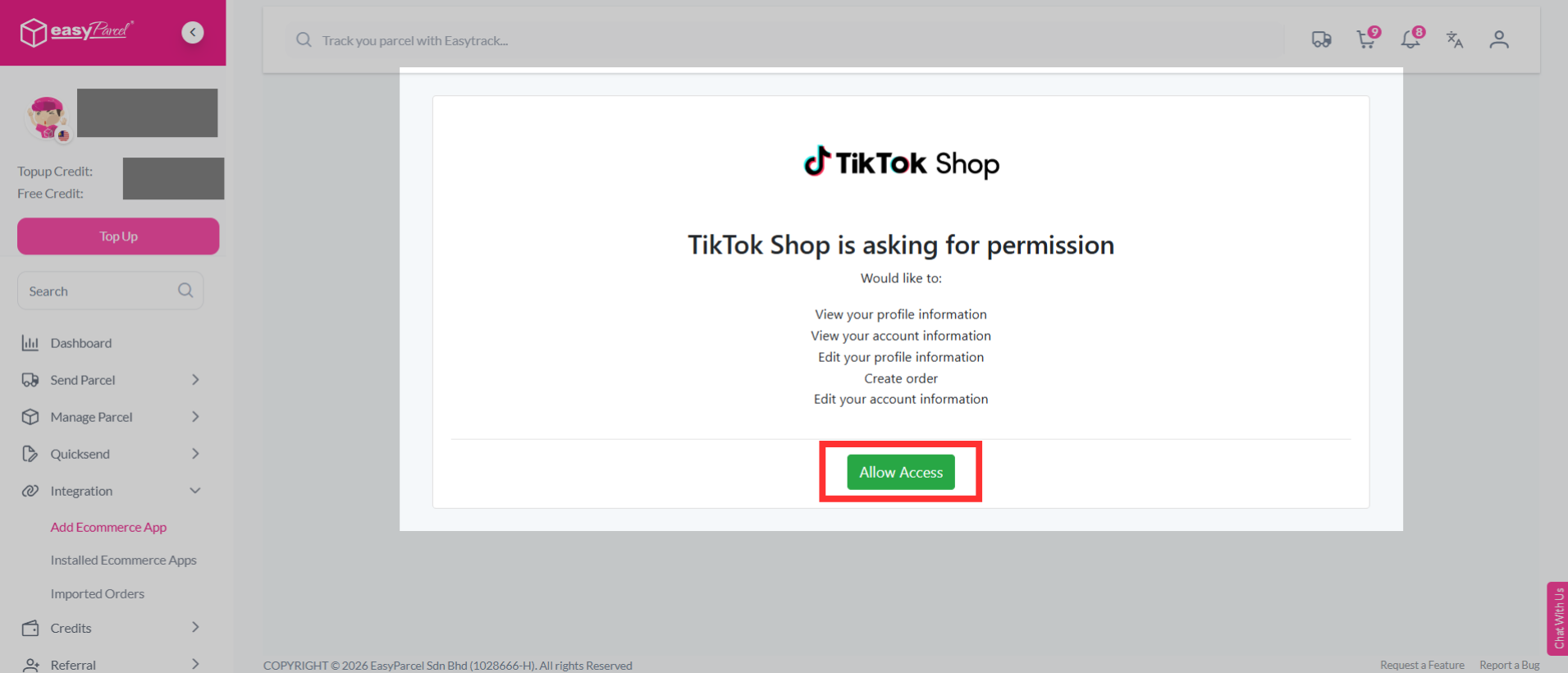
Step 3: TikTok Shop will ask for permission to connect with EasyParcel. Review the requested permissions, then click "Allow Access" to continue.
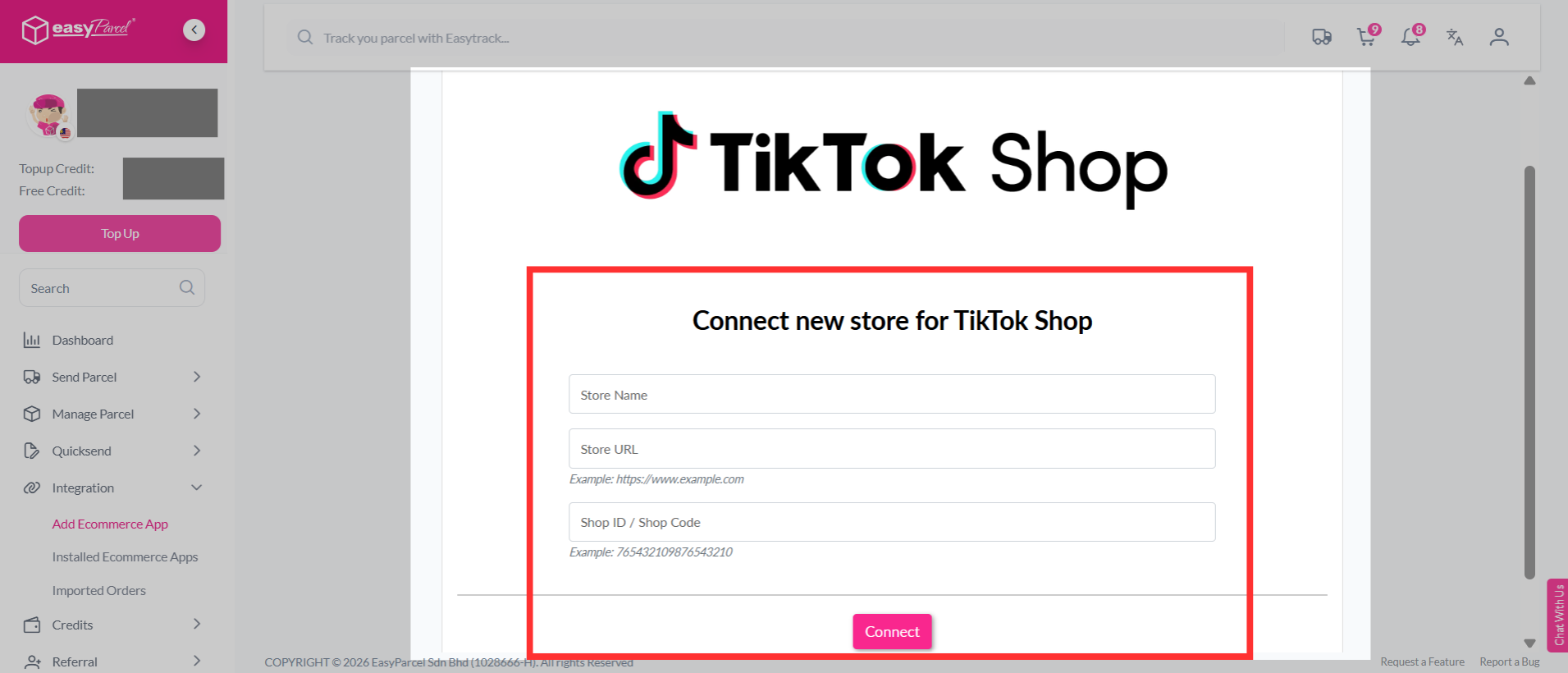
Step 4: Fill in your store's name, store URL and shop ID/ shop code, then click "Connect" to continue.
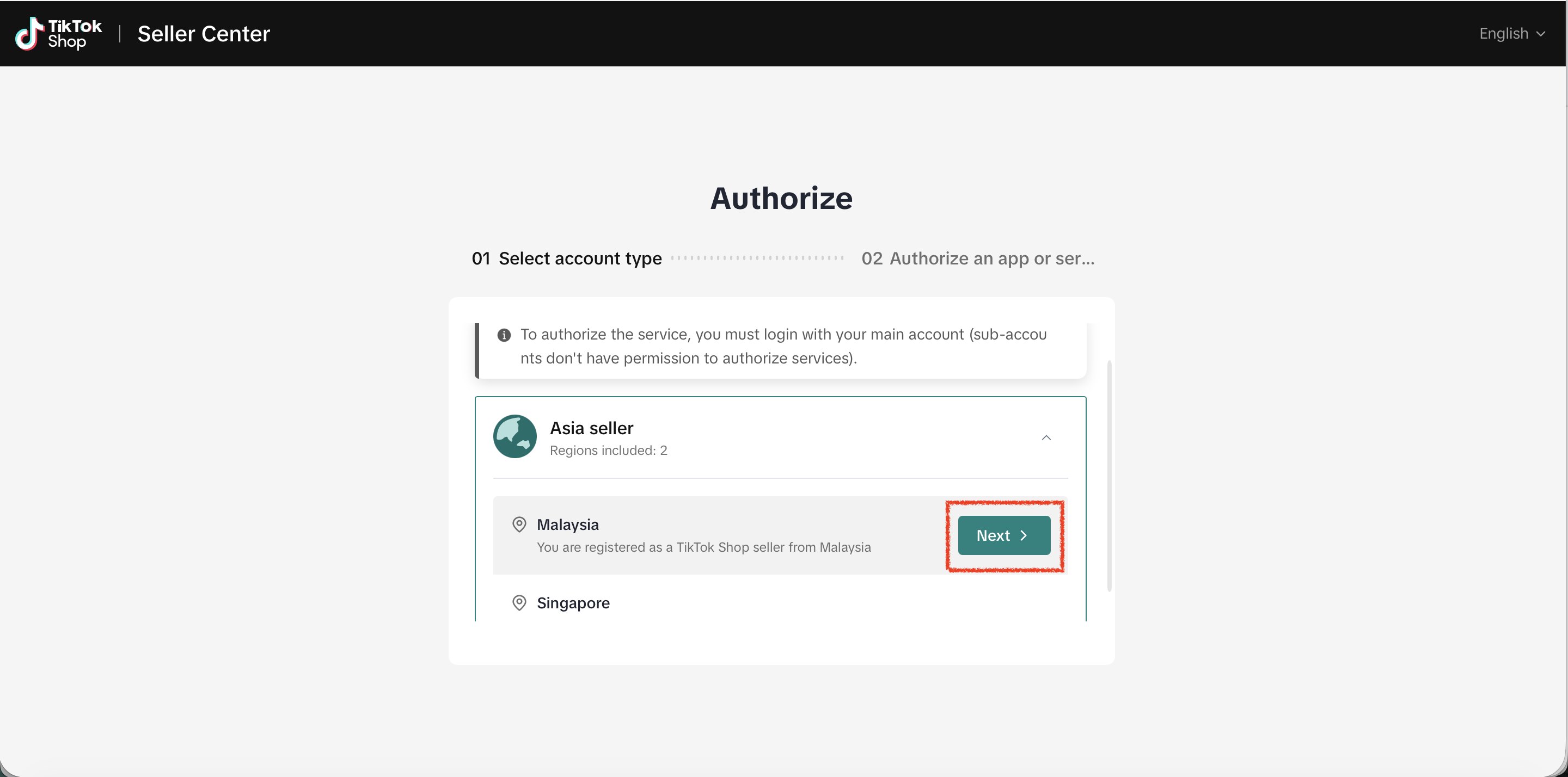
Step 5: You will be redirected to the TikTok Shop Seller Centre to authorize the app. First, select the region of your seller account, then click "Next" to continue.
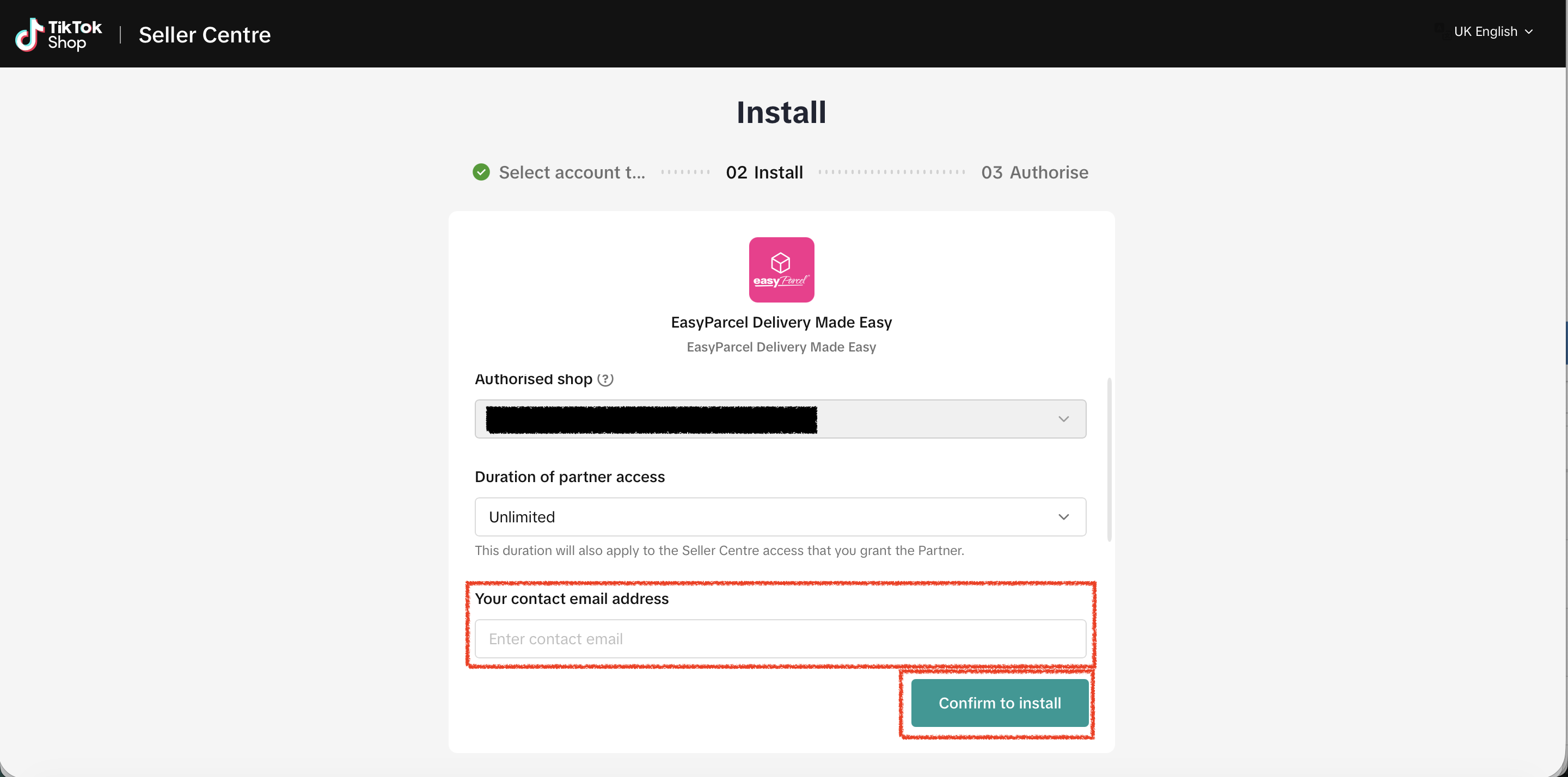
Step 6: Ensure the authorized shop is the shop you wish to connect. Select the partner access duration based on your preference and enter your contact email address. Finally, click "Confirm to install".
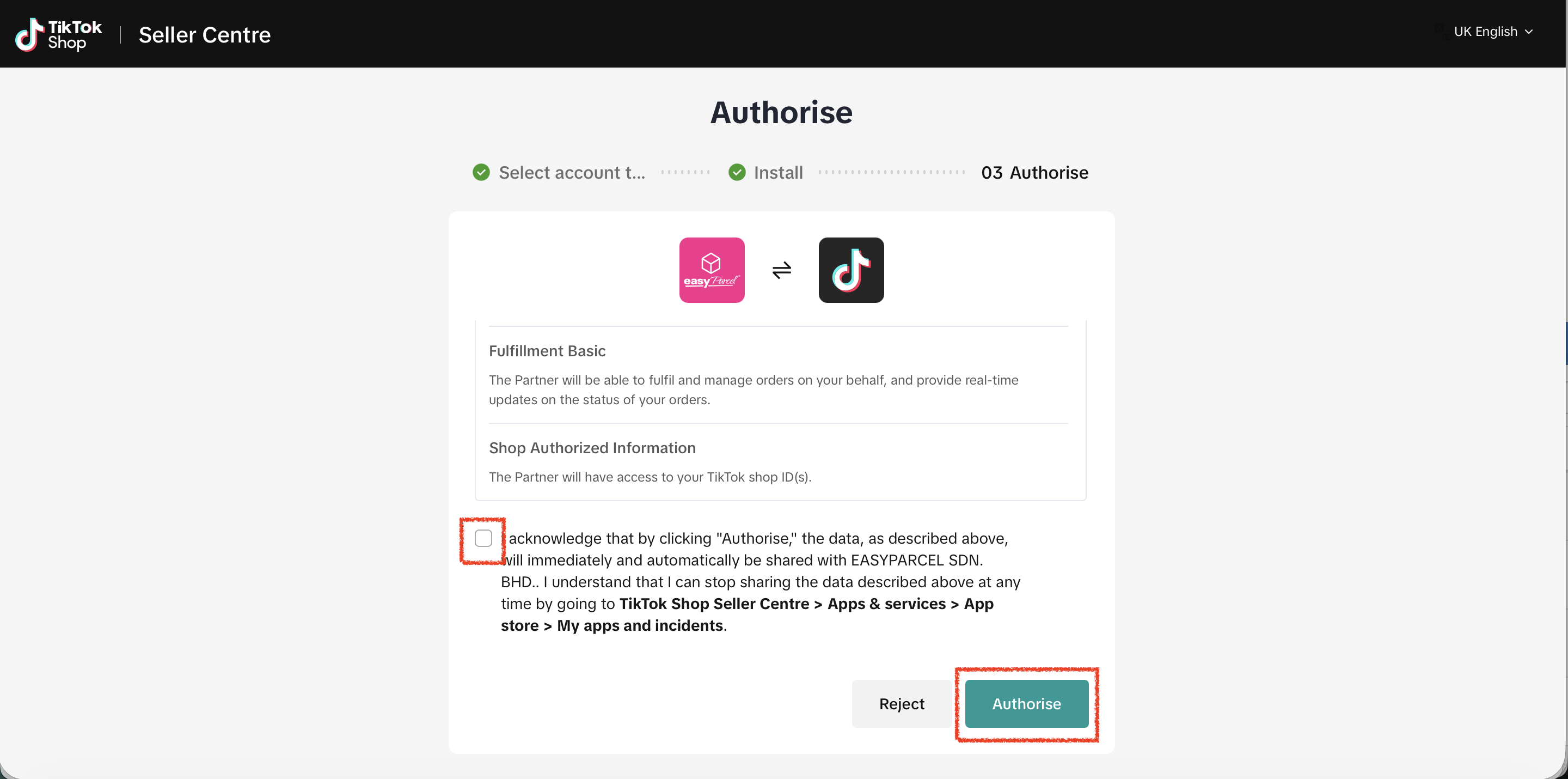
Step 7: Acknowledge the authorization scopes by checking the acknowledgement message, then click "Authorise".
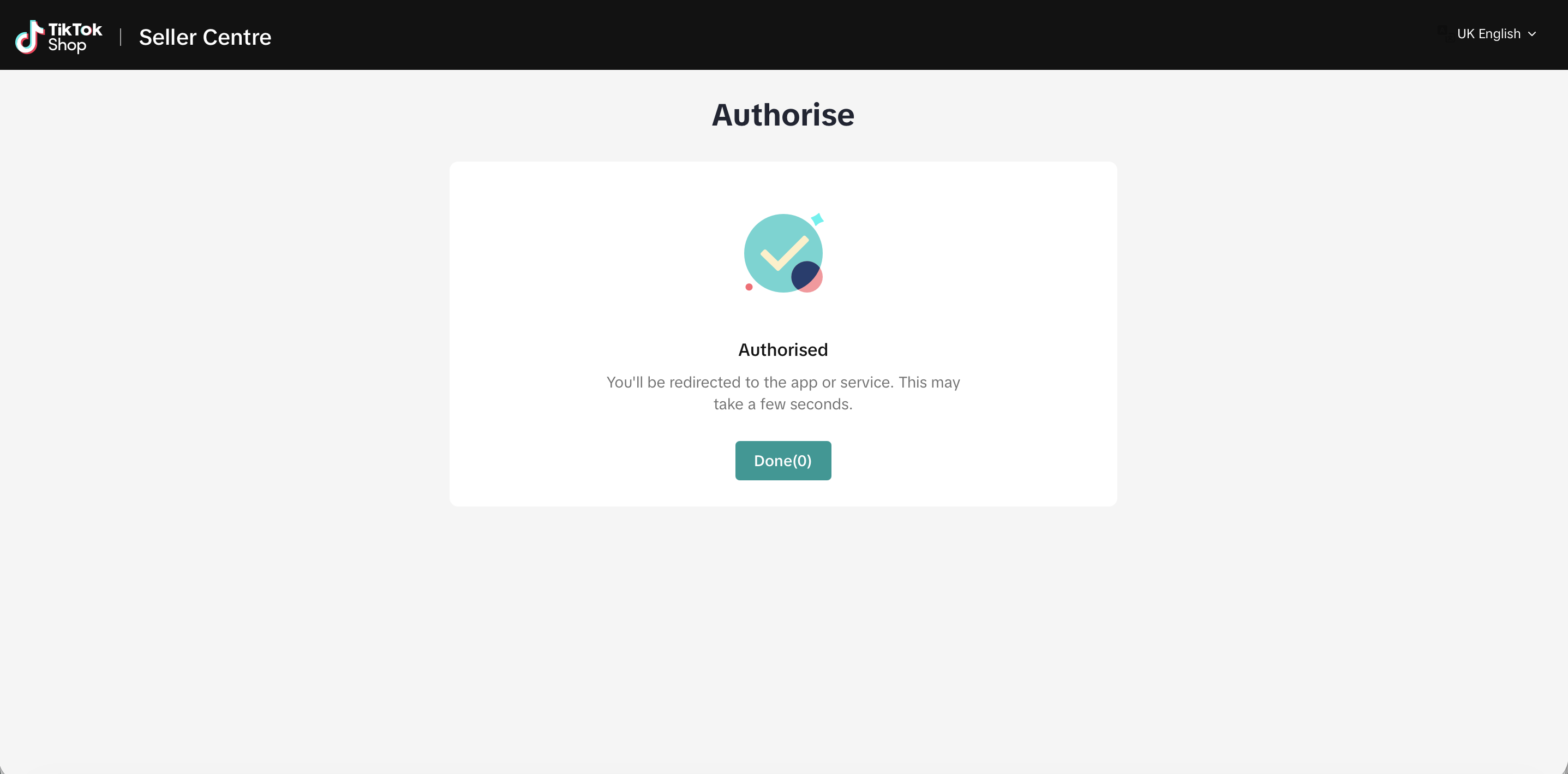
Step 8: You will then be redirected back to the EasyParcel website in 5 seconds. You may also click "Done" to be redirected immediately.
Step 9: Under "Integration", click "Installed Ecommerce Apps".
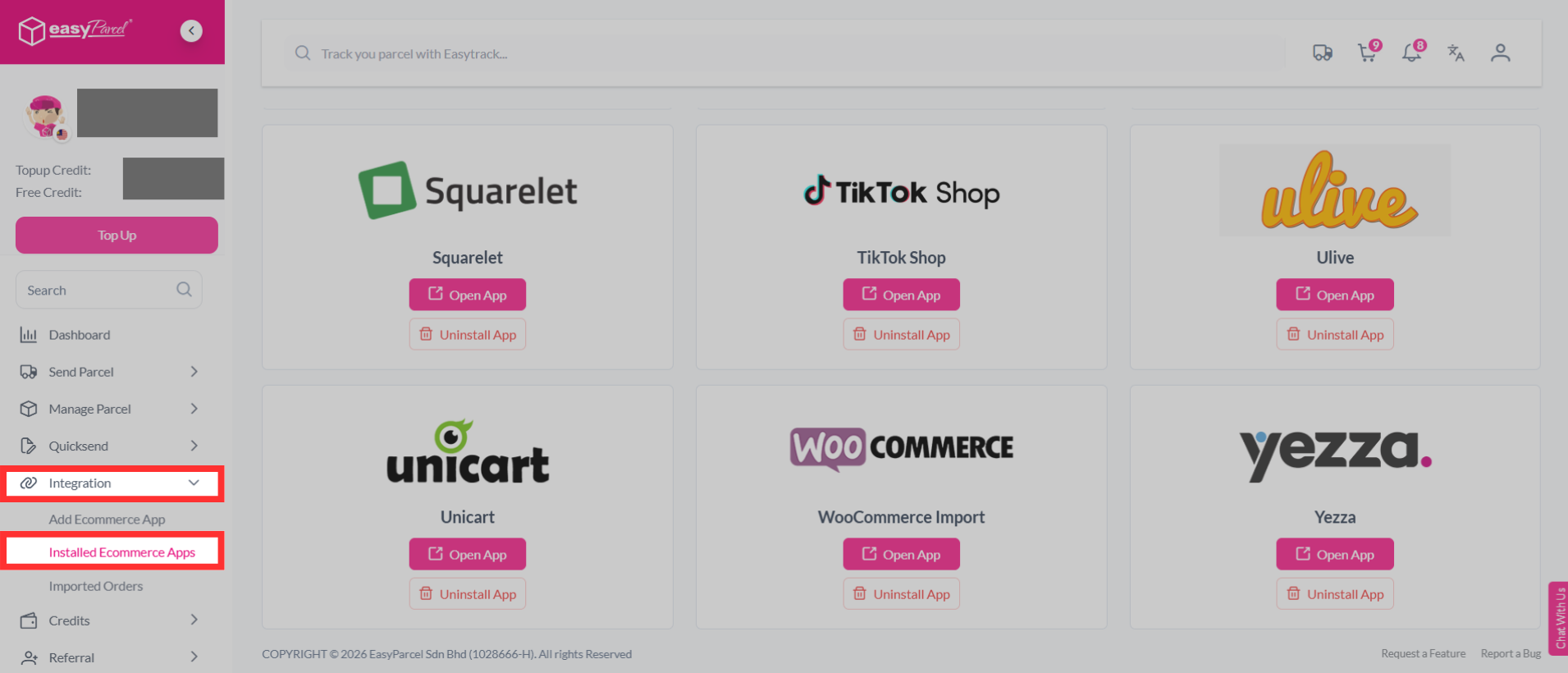
Step 10: Find "TikTok Shop". Click "Open App".
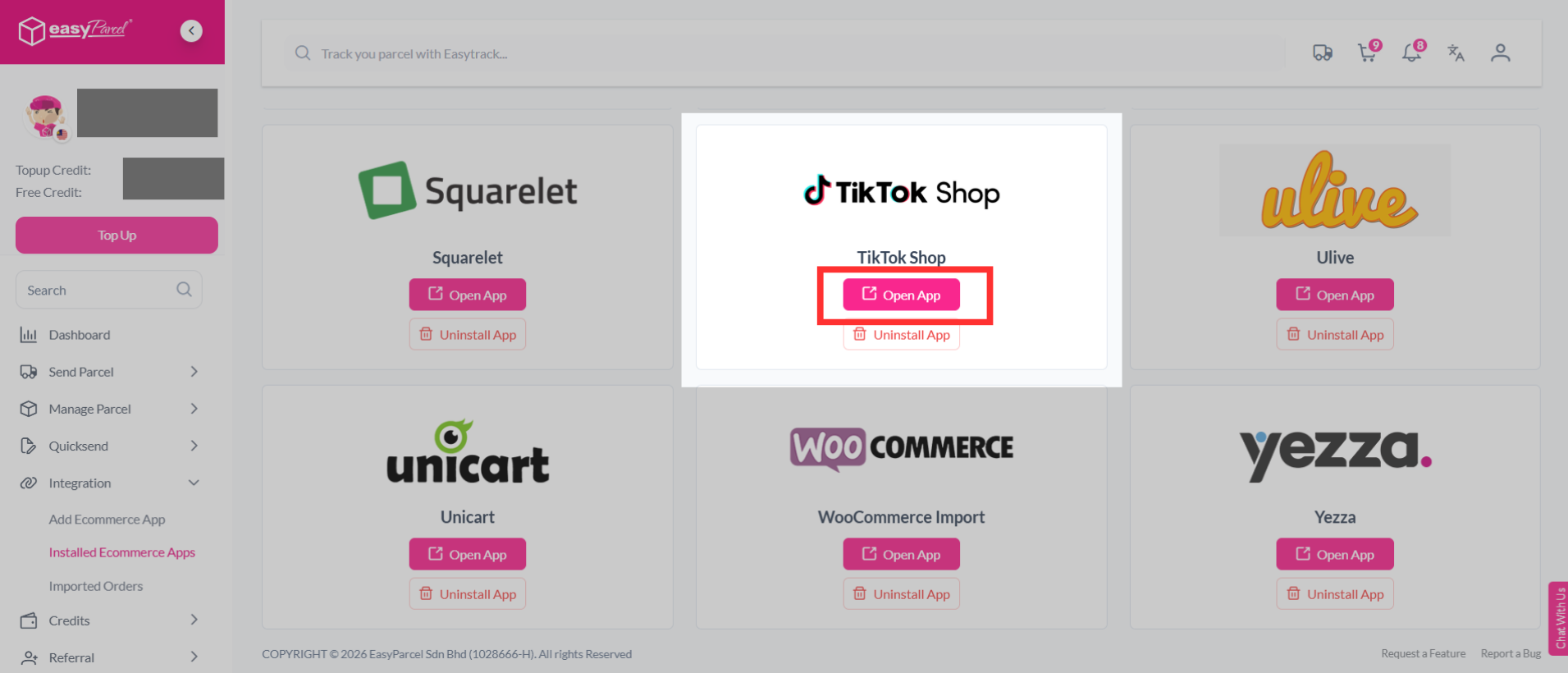
Step 11: In your store, click "Sender Address", fill in your sender details, then click "Update".
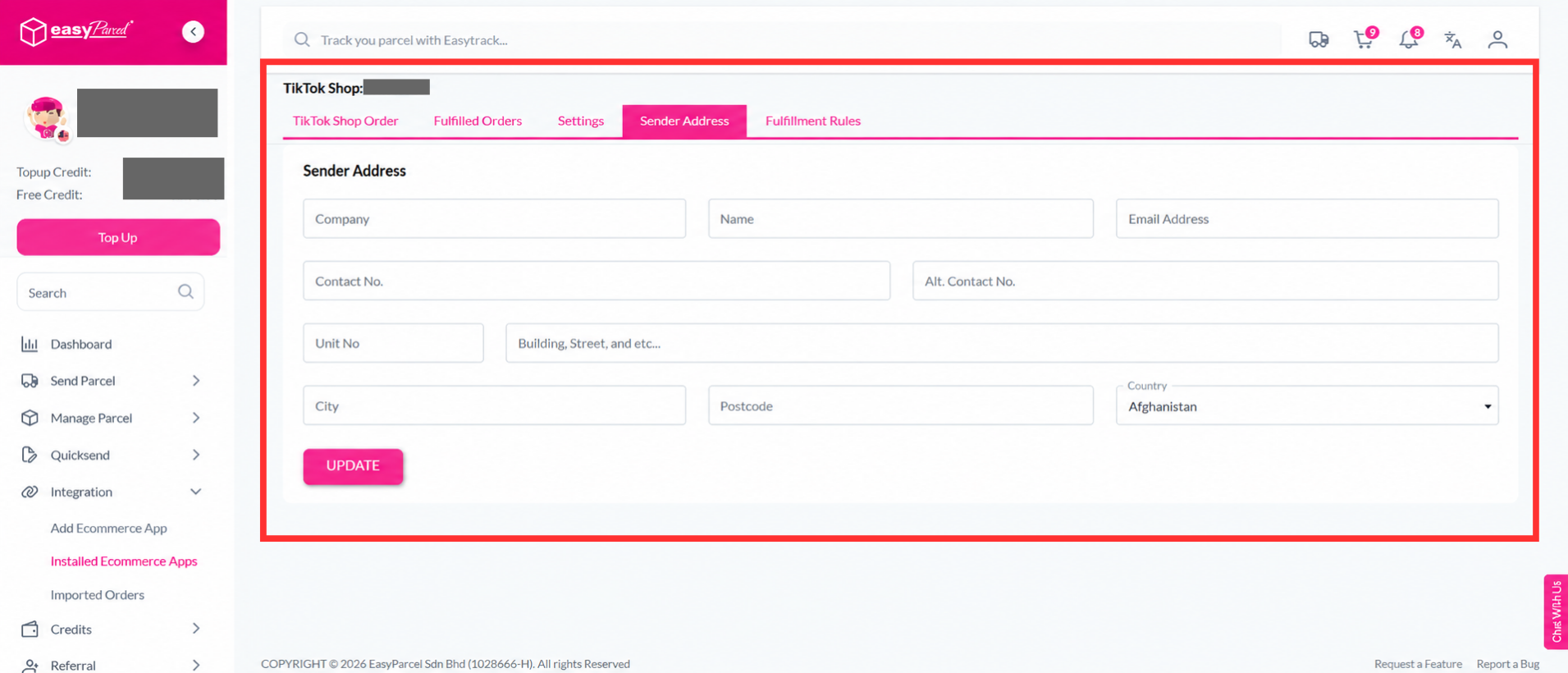
Step 12: Done! You have successfully set up the TikTok Shop in EasyParcel.
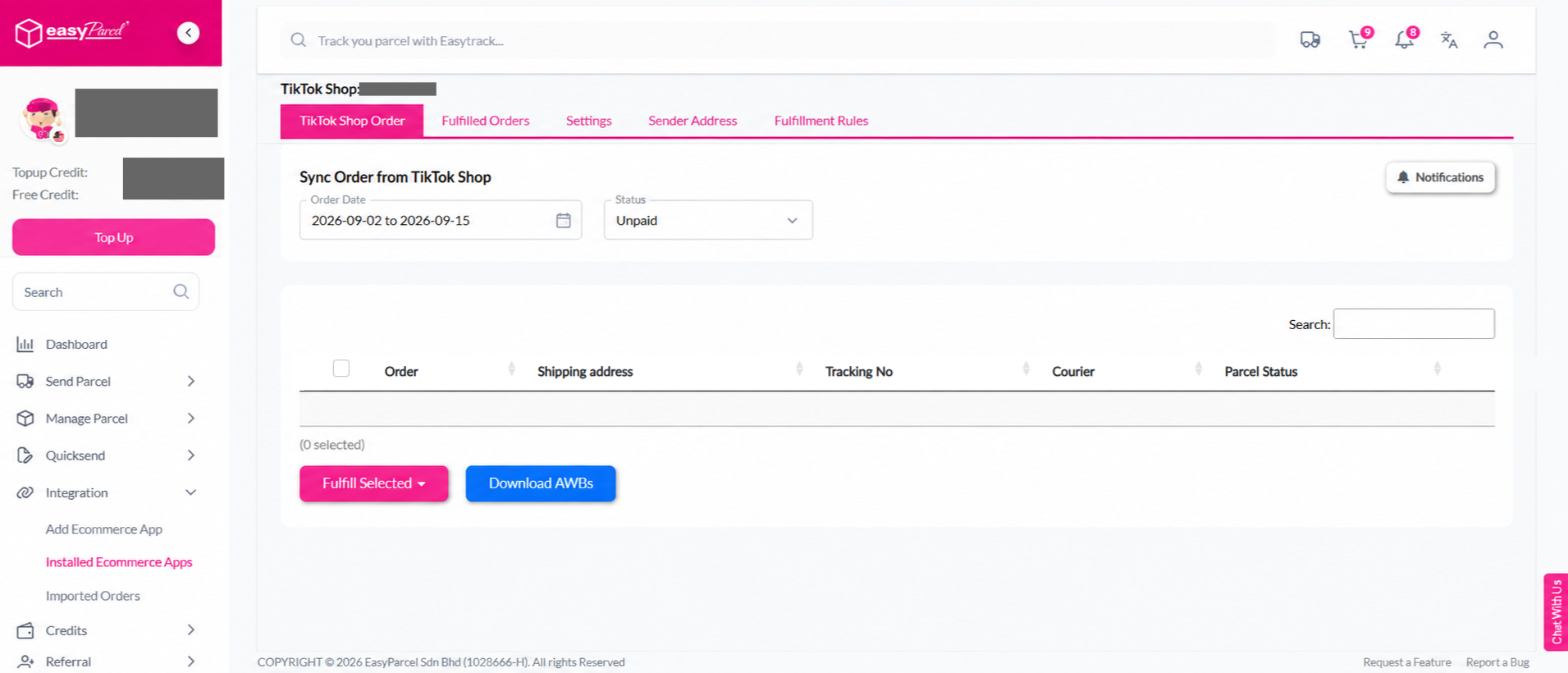
How do I import and fulfill my TikTok Shop orders by using EasyParcel?
Step 1: Under "Integration", click "Installed Ecommerce Apps".
Step 2: Find "TikTok Shop". Click "Open App".
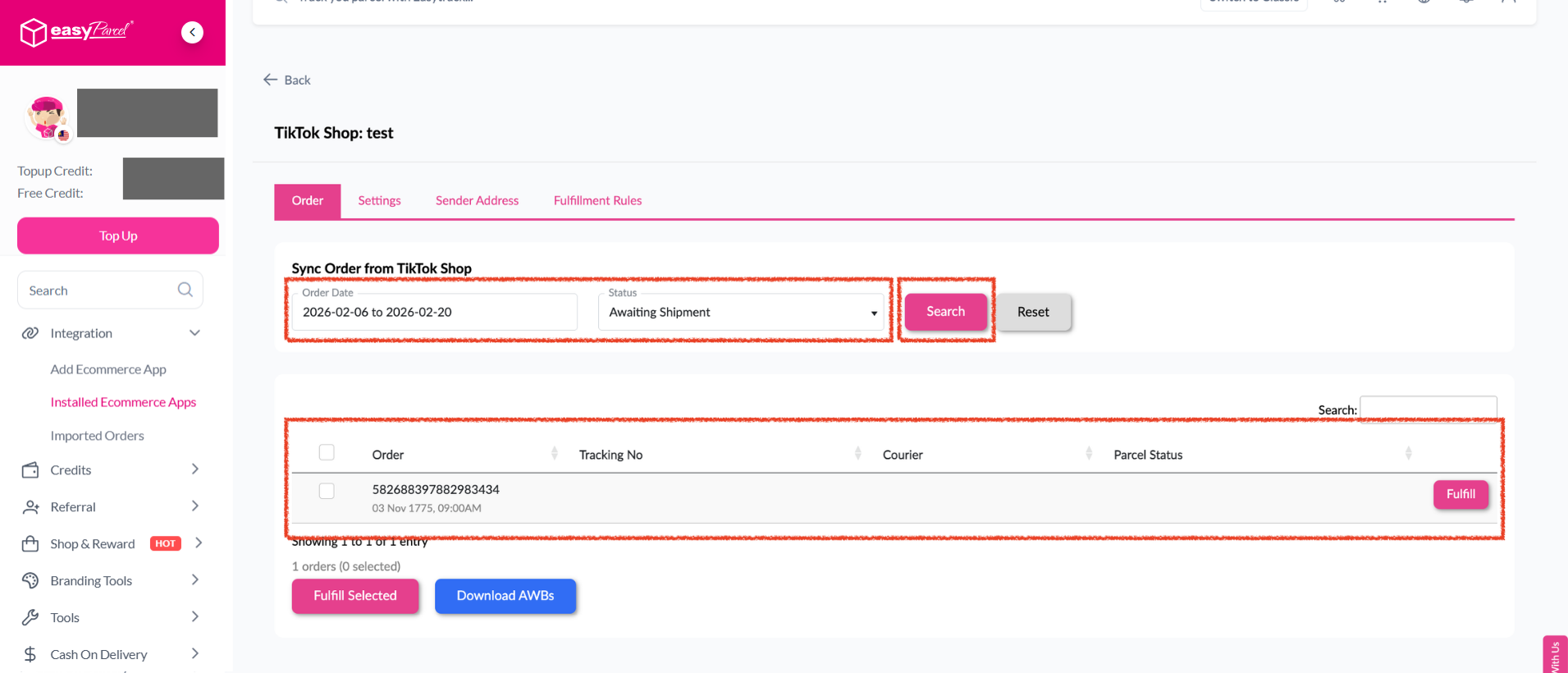
Step 3: Click "Order", select the order date and order status, then click "Search". The imported orders will appear in the list below. Click "Fulfill" on the order you want to process.
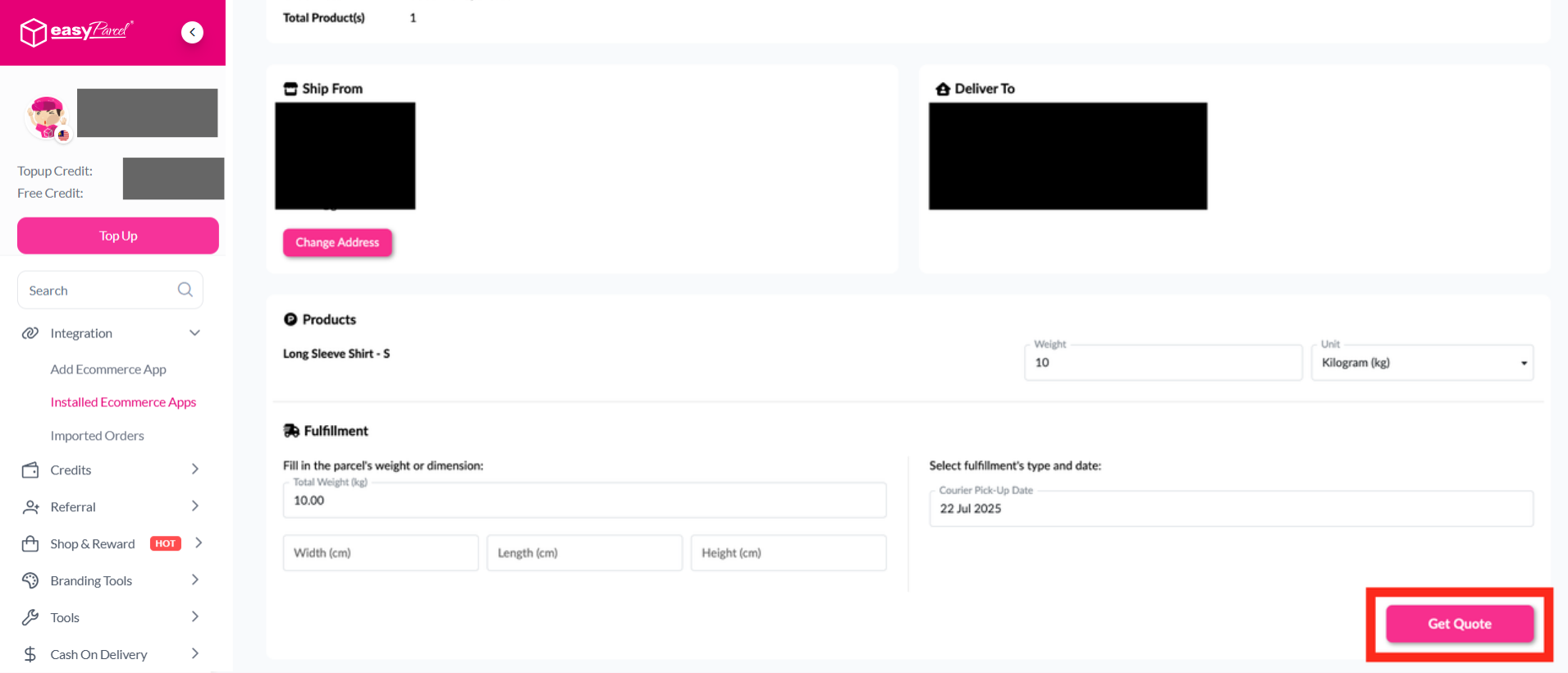
Step 4: After clicking "Fulfill", review your order details and click "Get Quote" to proceed.
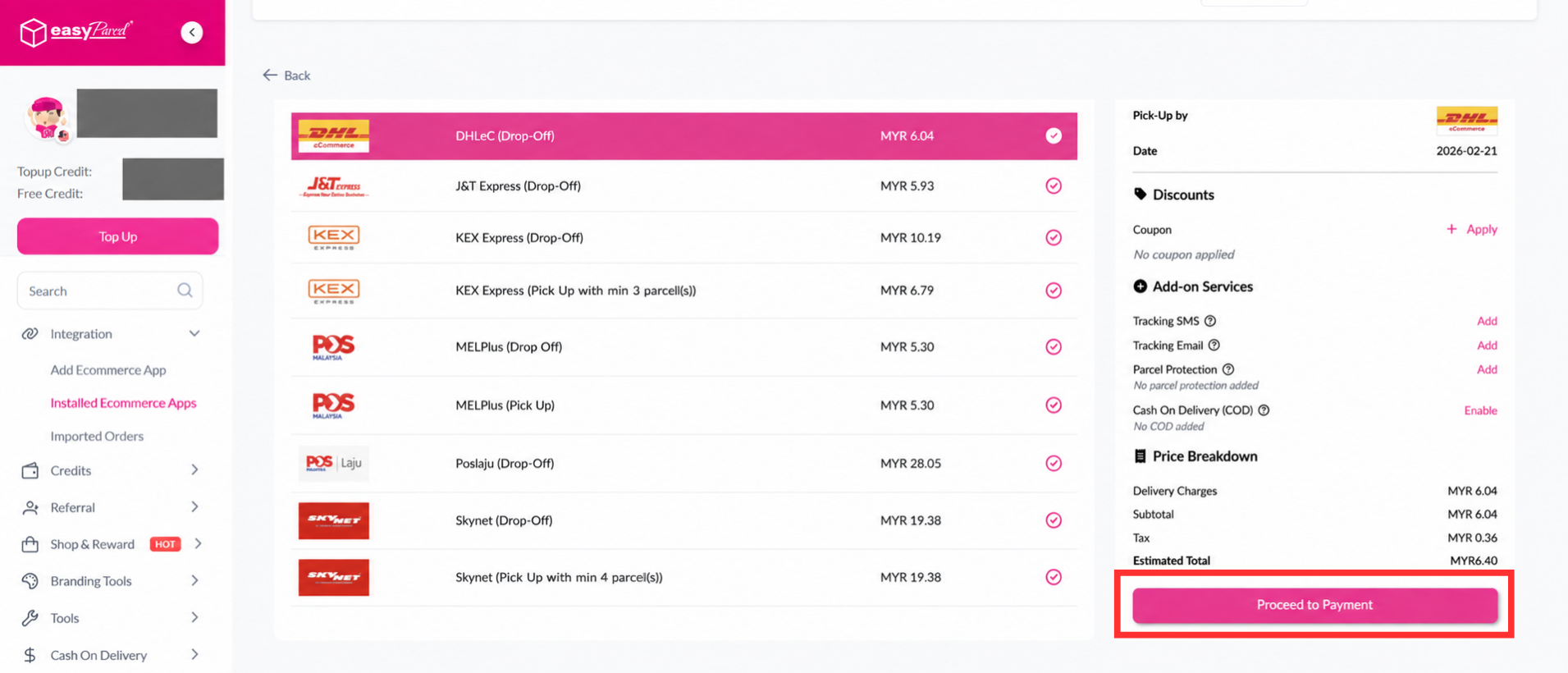
Step 5: Choose your preferred courier and click "Proceed to Payment".
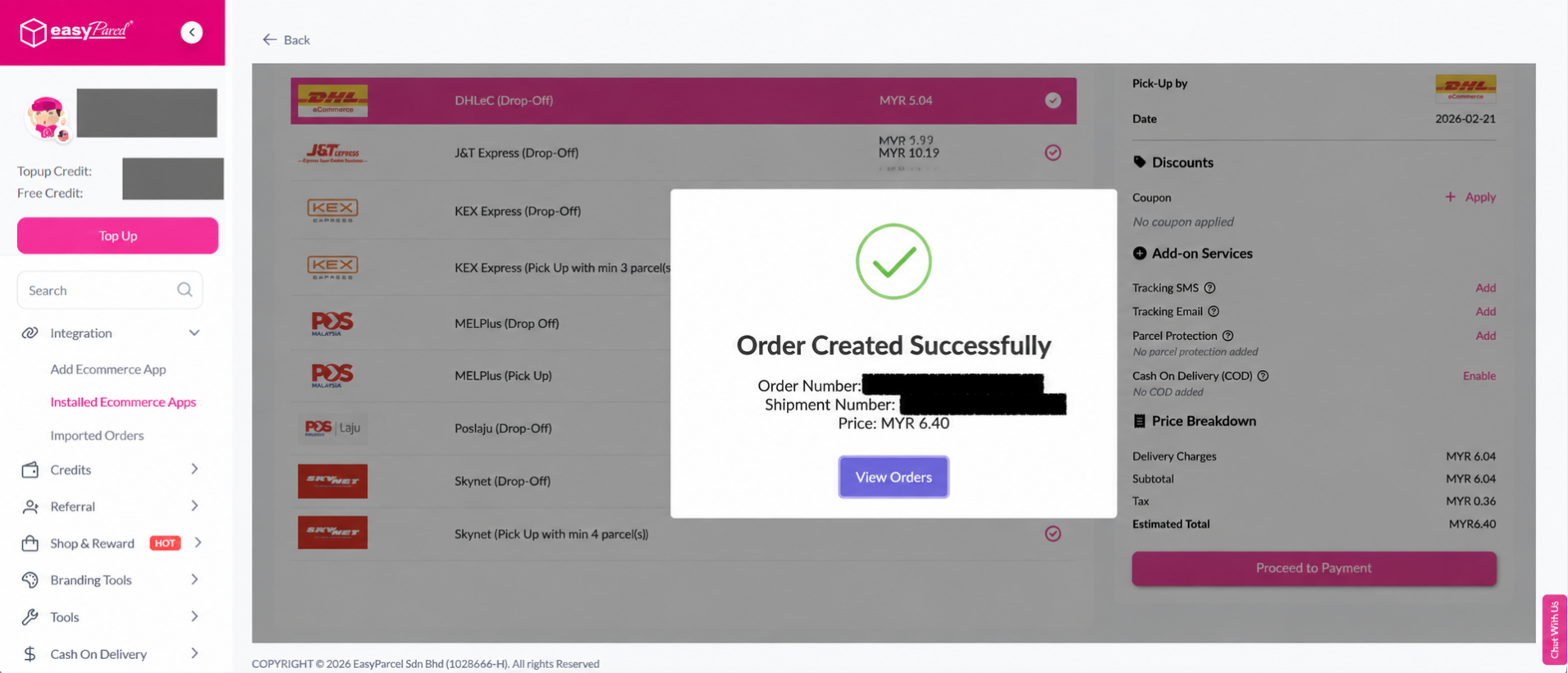
Step 6: Your order has been created successfully! The order status, order number, shipment number, and price will be displayed. Click "View Orders" to proceed.
Step 7: Click "Details" to view the order details.
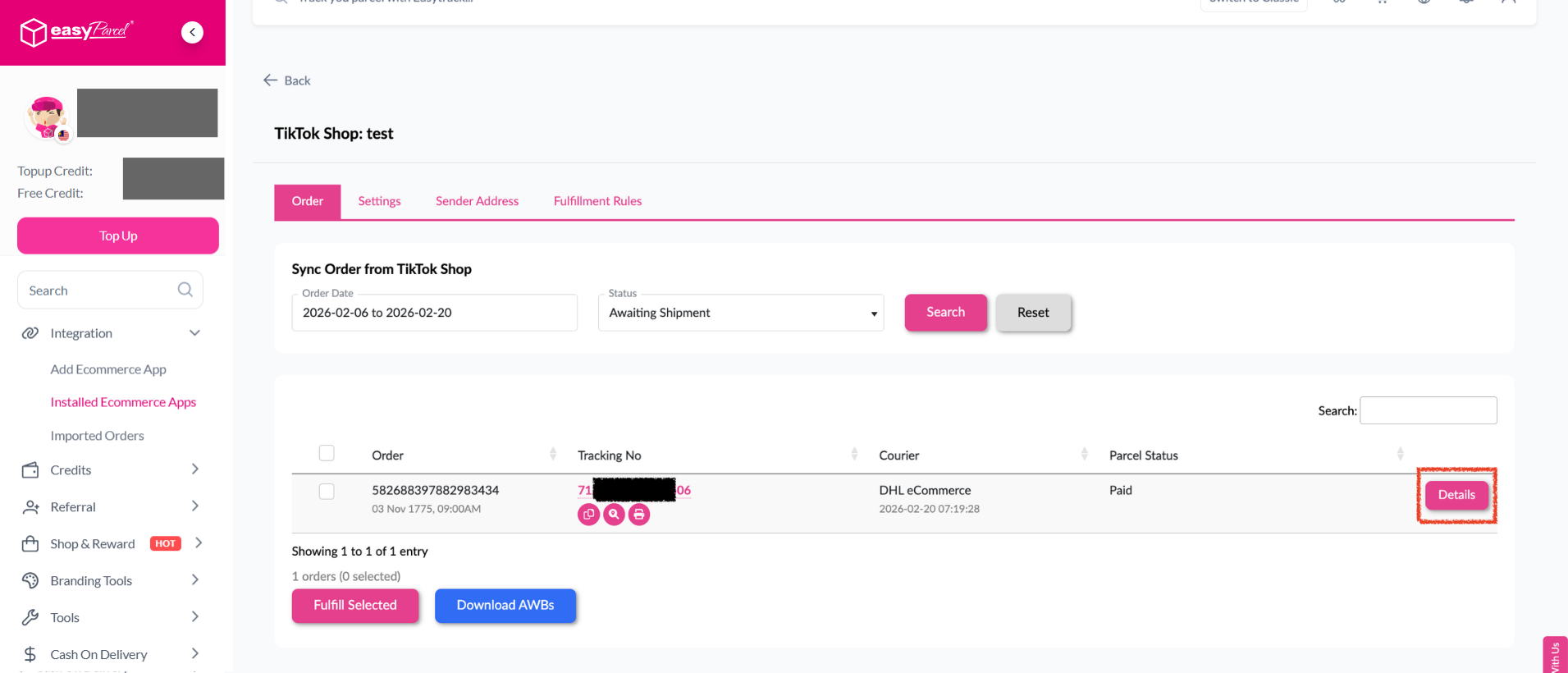
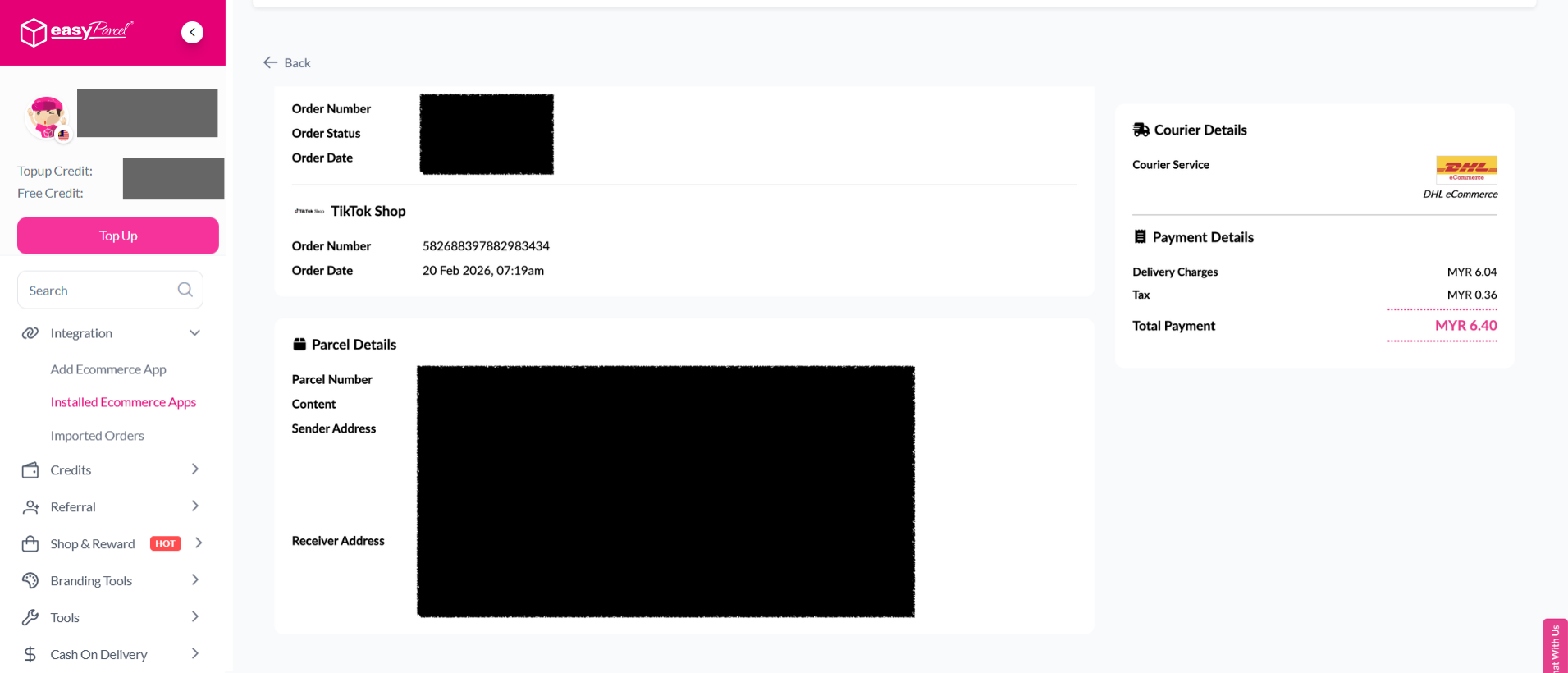
Step 8: Order details will be displayed on the page.
If you're unsure whether your TikTok Shop products are eligible for Seller Own Fleet, check with TikTok Support or your seller account manager.
For help using EasyParcel, feel free to reach out here.