Introduction
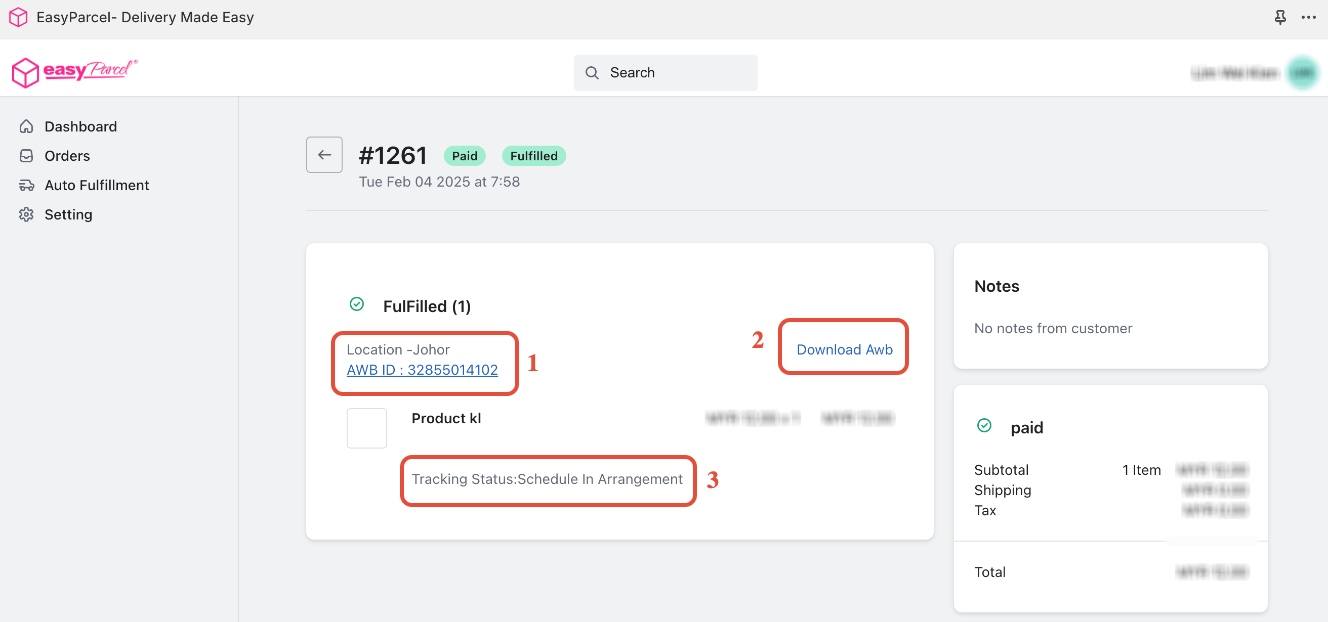
By default, fulfilling an order with EasyParcel shipping options does not automatically update the order status in Shopify. Manually changing the status for each order can be time-consuming and prone to errors. Enabling automatic order status updates ensures that your Shopify order records accurately reflect the fulfillment status, streamlining your workflow and improving order management. 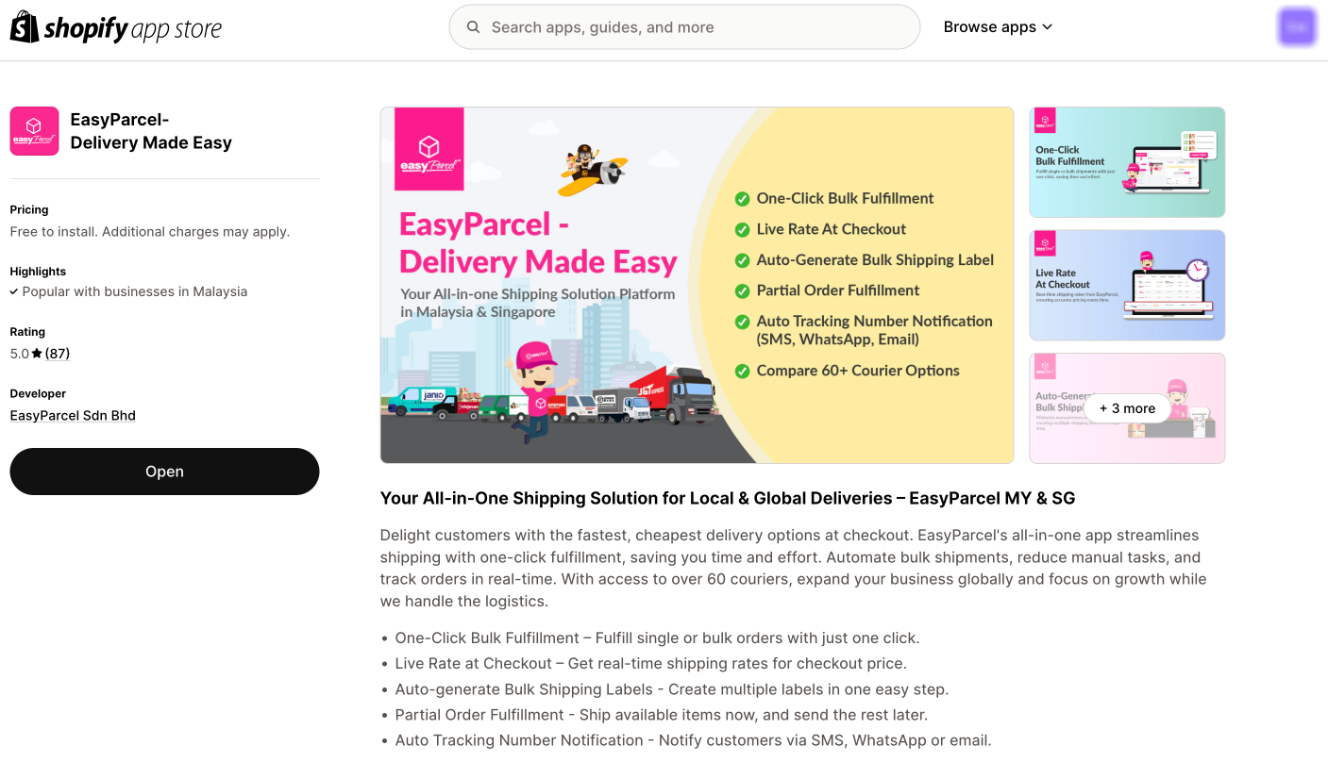
Step 1: Access the EasyParcel Shopify App
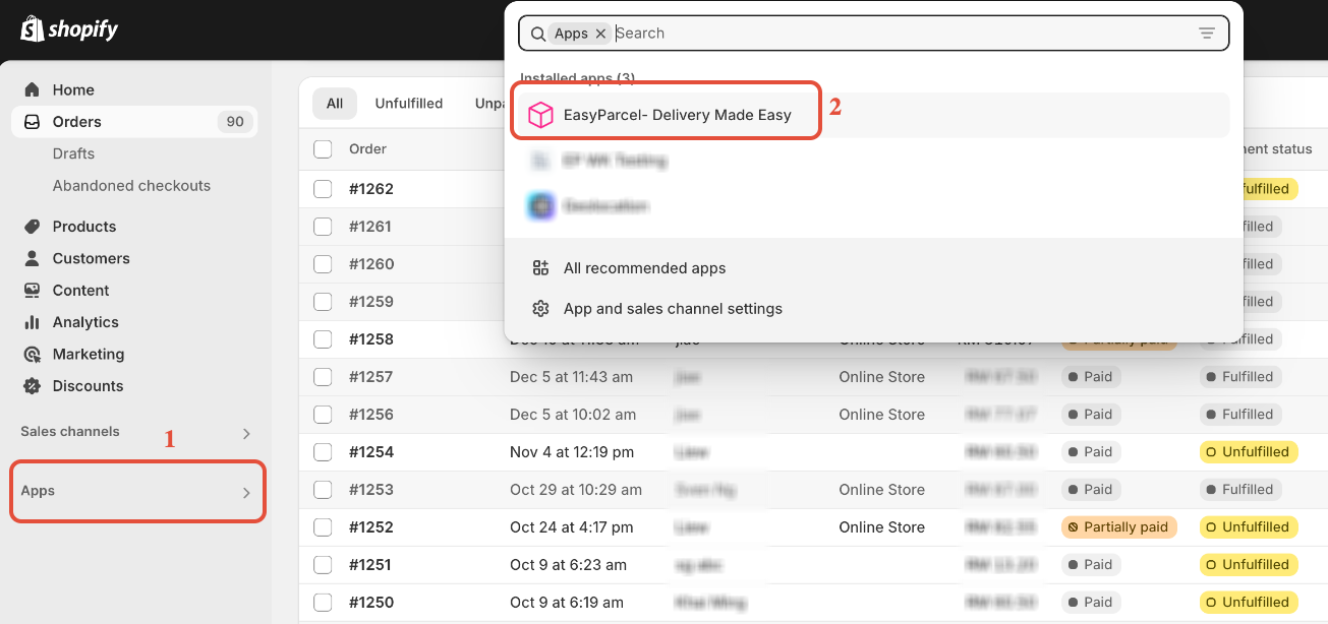
In your Shopify admin, click on "Apps" and select the "EasyParcel- Delivery Made Easy" Shopify APP.
- Note: If you haven't installed the EasyParcel Shopify app, learn how to integrate with EasyParcel here.
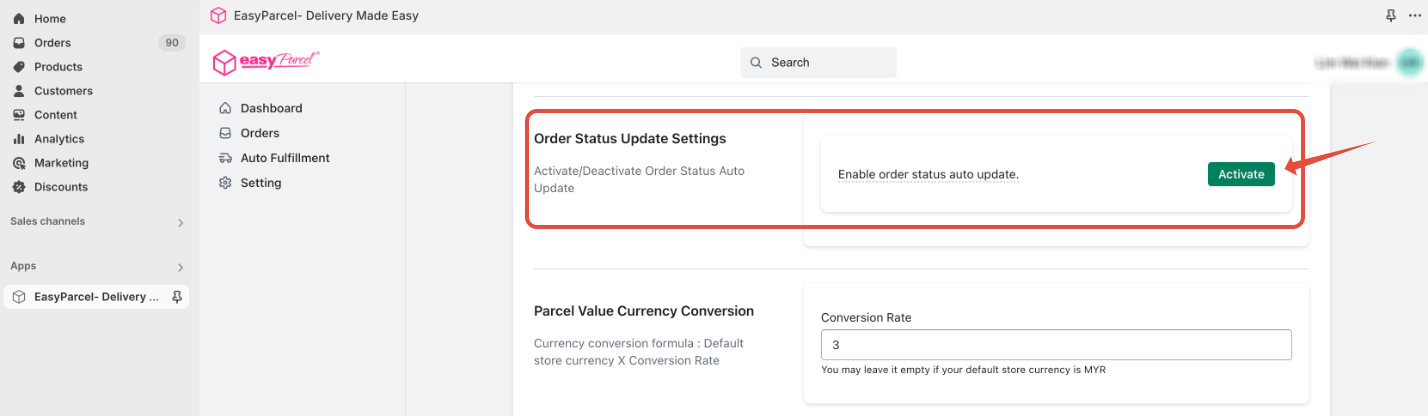
Step 2: Activate Order Status Update Settings
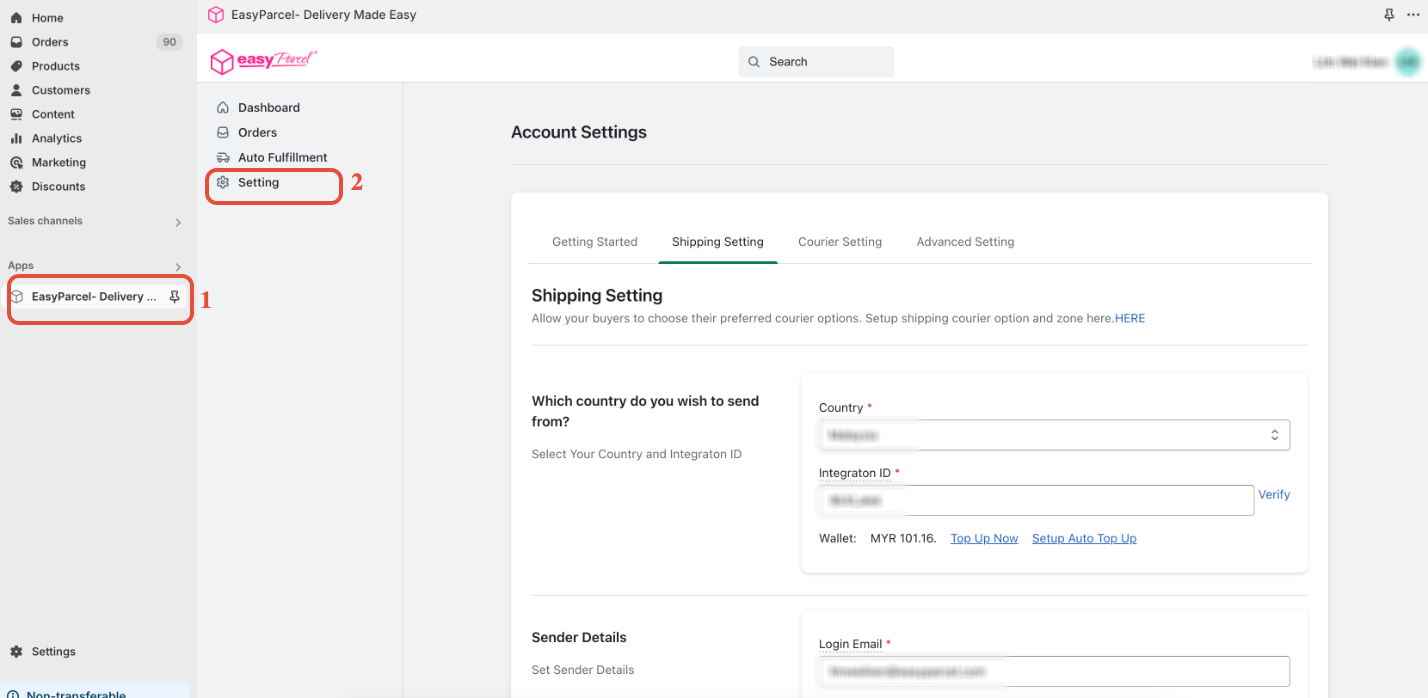
- Click on "Settings" within the EasyParcel Shopify app. Scroll down to the "Order Status Update Settings" section and click the "Activate" button.
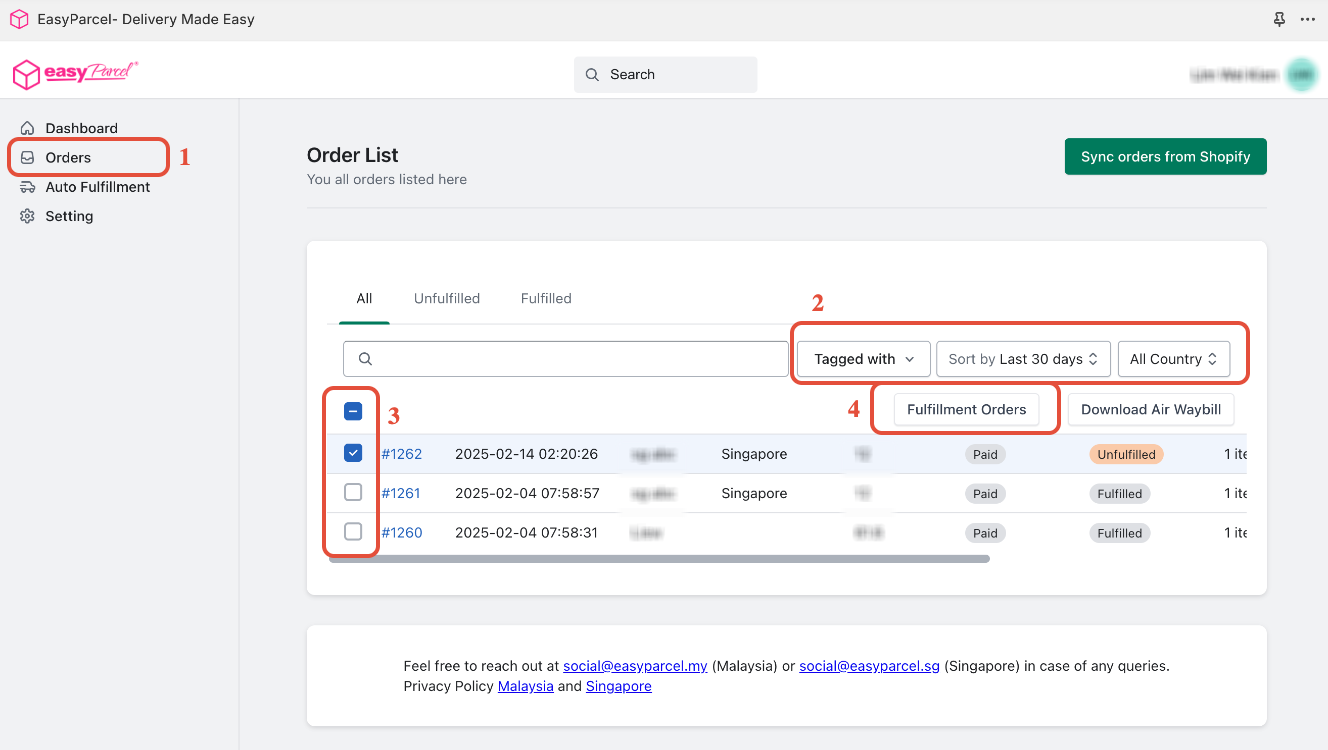
 Step 3: Fulfill Your Order in Shopify with EasyParcel
Fulfill your Shopify order using the EasyParcel shipping options.
- Note:If you are unsure how to fulfill Shopify orders with EasyParcel, refer to these instructions to learn more.
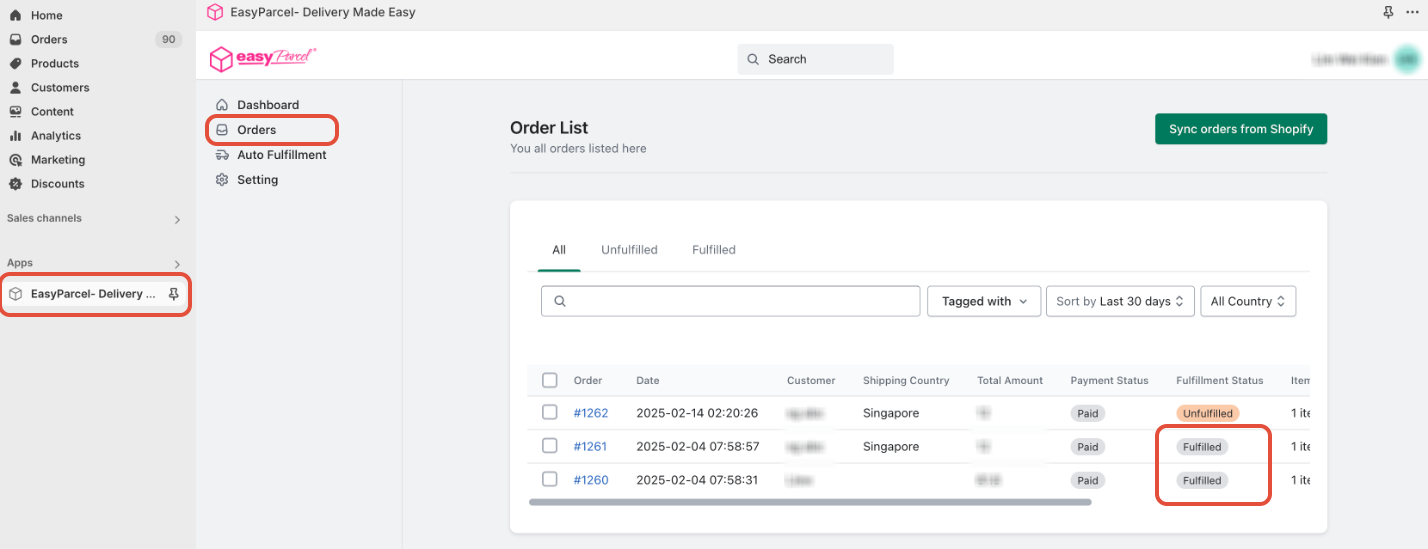
Step 4: Automatic Order Status Update
- After fulfilling the order with EasyParcel, the order status in Shopify will automatically change to "Fulfilled." This eliminates the need for manual updates.
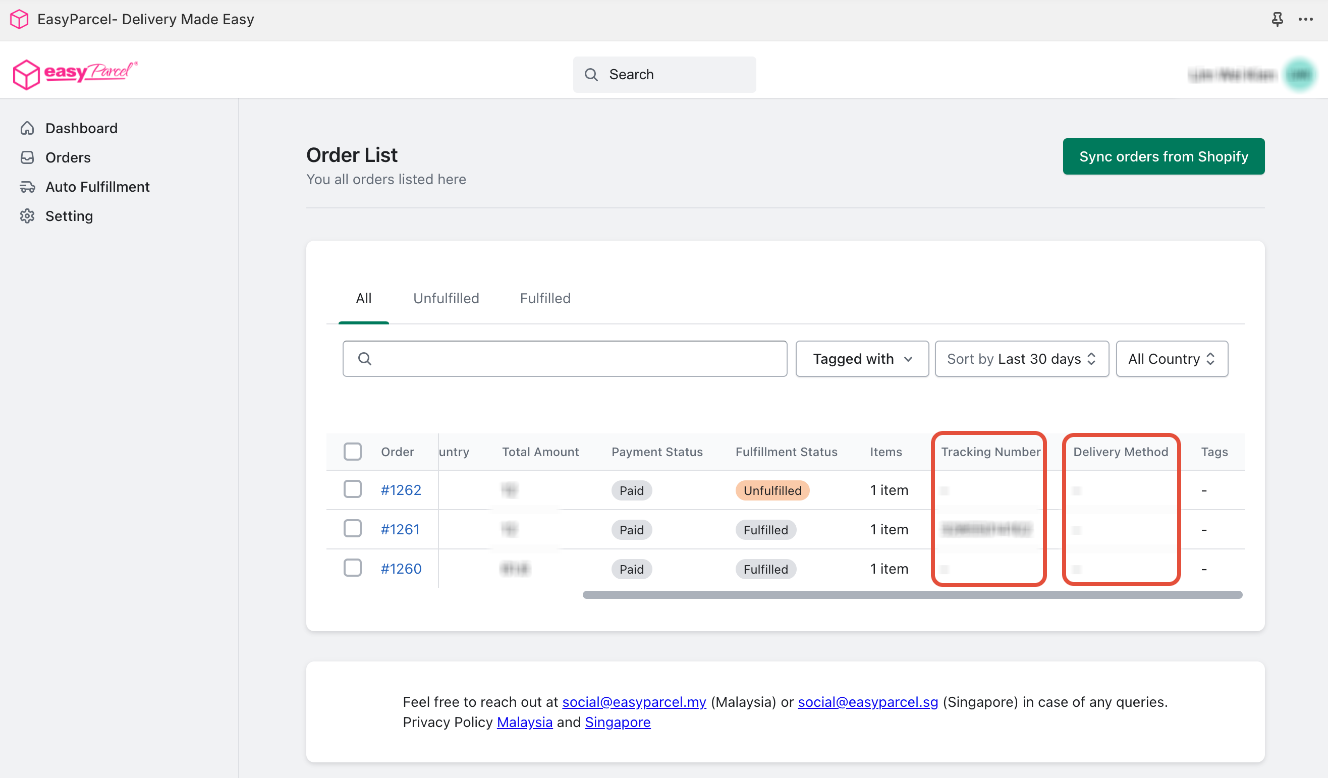
Step 5: AWB Generation and Tracking
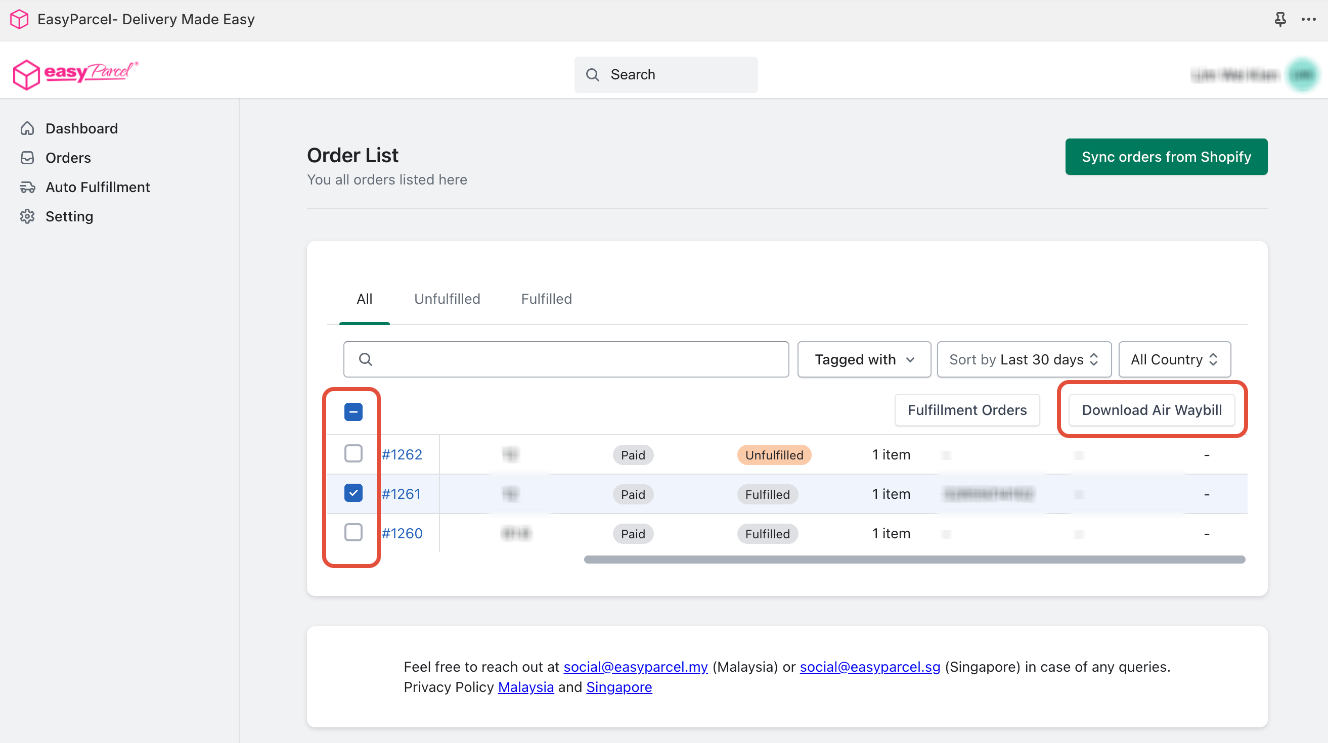
- Your Air Waybills (AWBs) will be generated automatically.
- You can find the tracking numbers on "Tracking Number" coulumn.
- Click "Download AWB" to print and attach the AWBs to your parcels.
Step 6: You may refer the tracking status of your order here too.