EasyParcel (Malaysia) Help Centre

Login Sign Up
Welcome
Login

How to integrate EasyParcel with WooCommerce?

Quick Summary

Integrating EasyParcel with WooCommerce can be done through two methods: the Import Version or the Plugin Version. The Import Version involves connecting the platforms via WooCommerce REST API keys to pull orders into the EasyParcel dashboard for manual processing. Alternatively, the Plugin Version provides a more seamless experience by allowing merchants to display real-time shipping rates at checkout and fulfill orders directly within the WooCommerce admin panel. To complete the setup for either method, users must configure their store details, weight units, and preferred courier settings to ensure accurate shipping costs and automated label generation.


Introduction

Hey EasyParcel fam! Looking to integrate EasyParcel with WooCommerce? You'll find the full guide here in this article. You can follow the steps right here in this tutorial video or you can check out the steps laid out for you below


1. Import Version

1.1: Set Up WooCommerce Integration

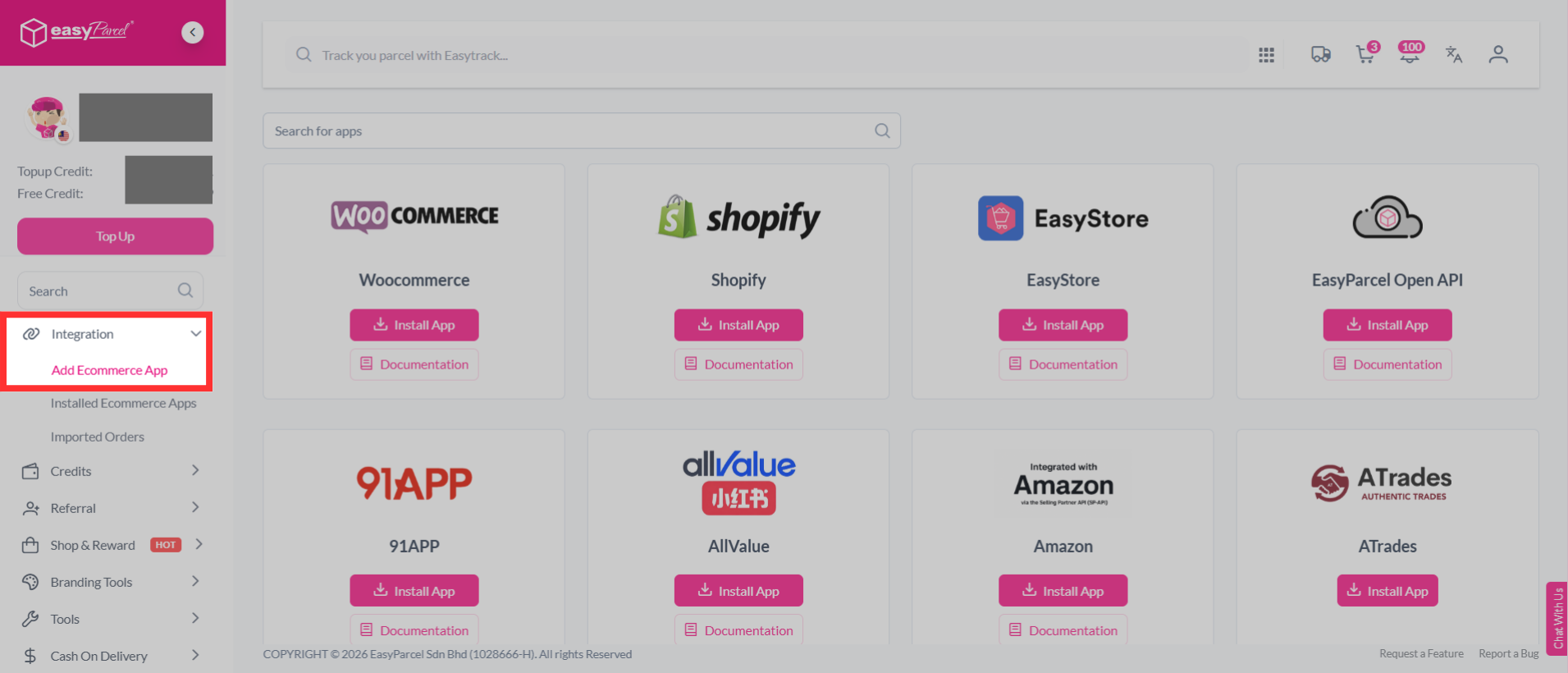
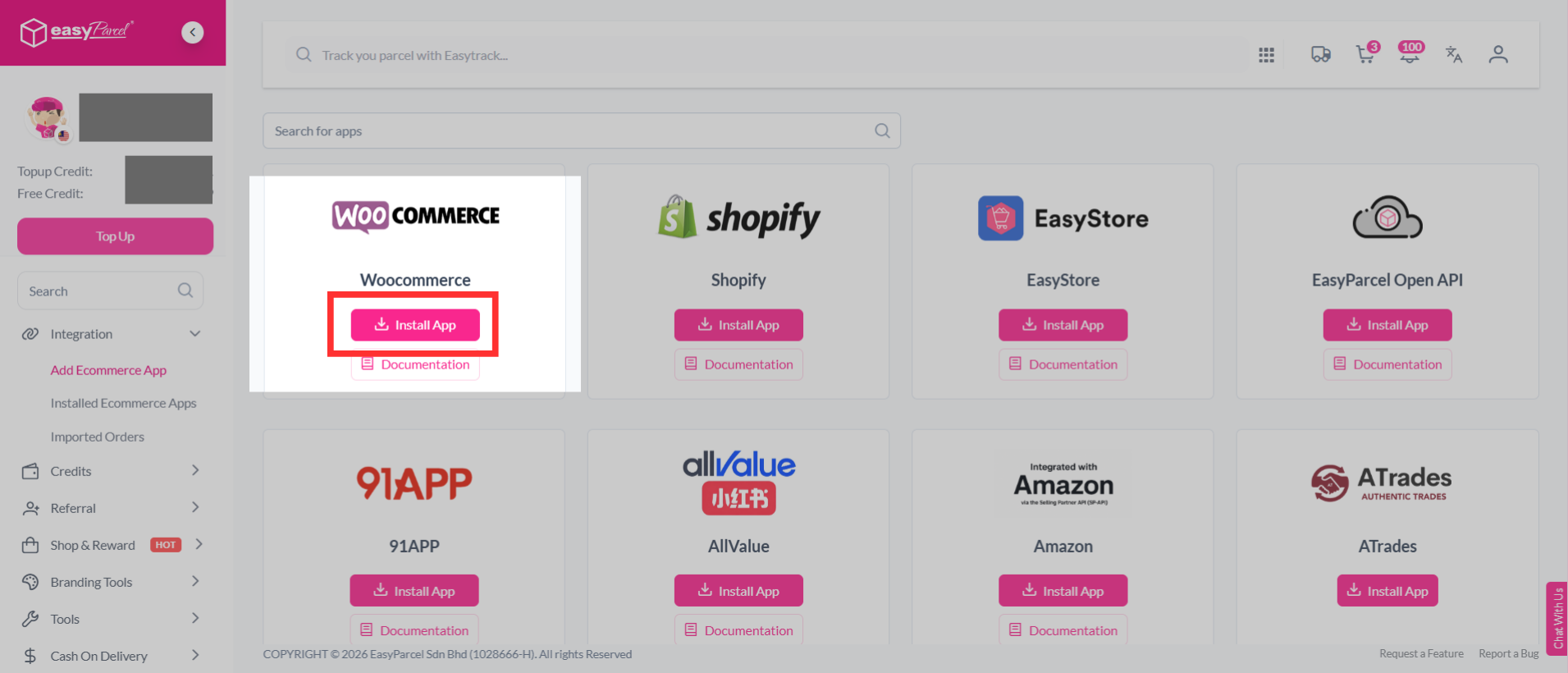
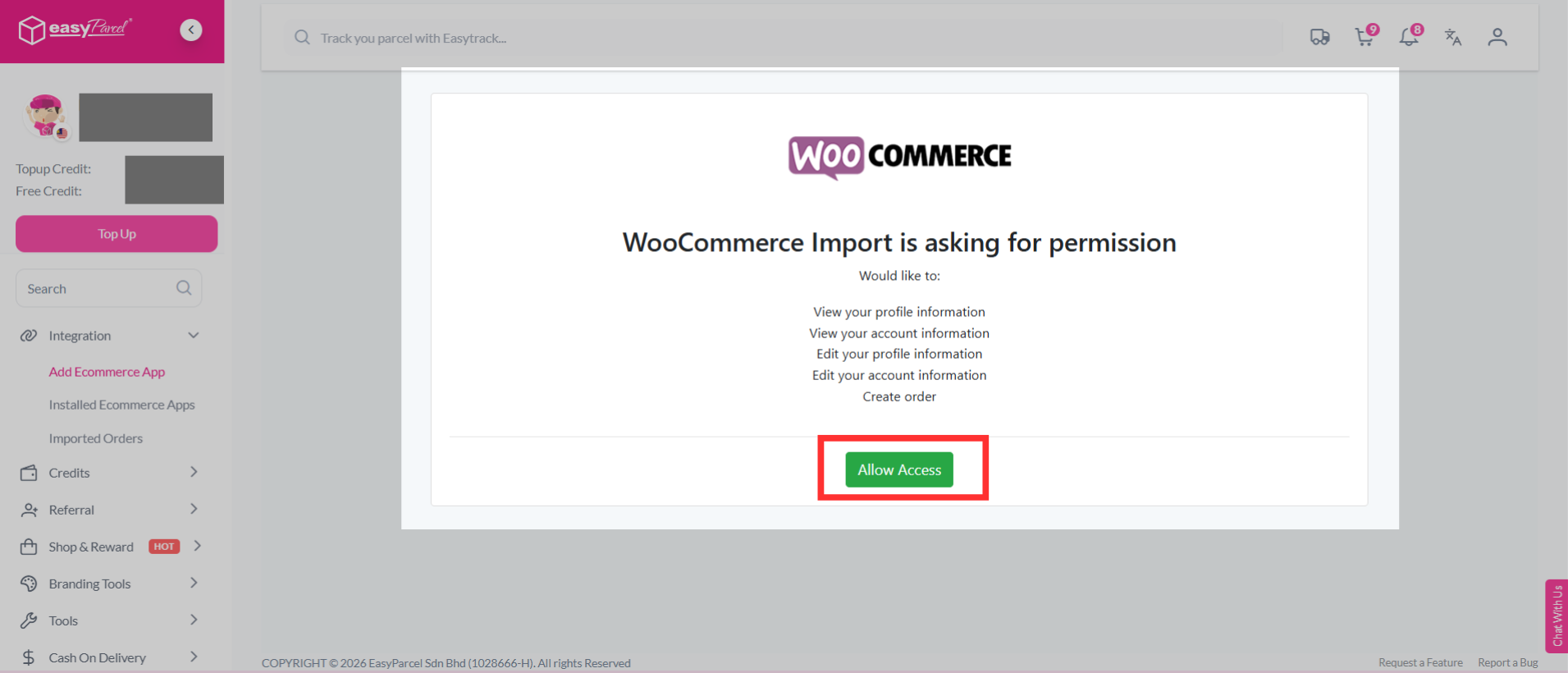
Step 1: Log in to your EasyParcel account, go to Integrations, click on 'Add New Store' and click 'WooCommerce'.

EasyParcel integrations page showing Add New Store and WooCommerce option

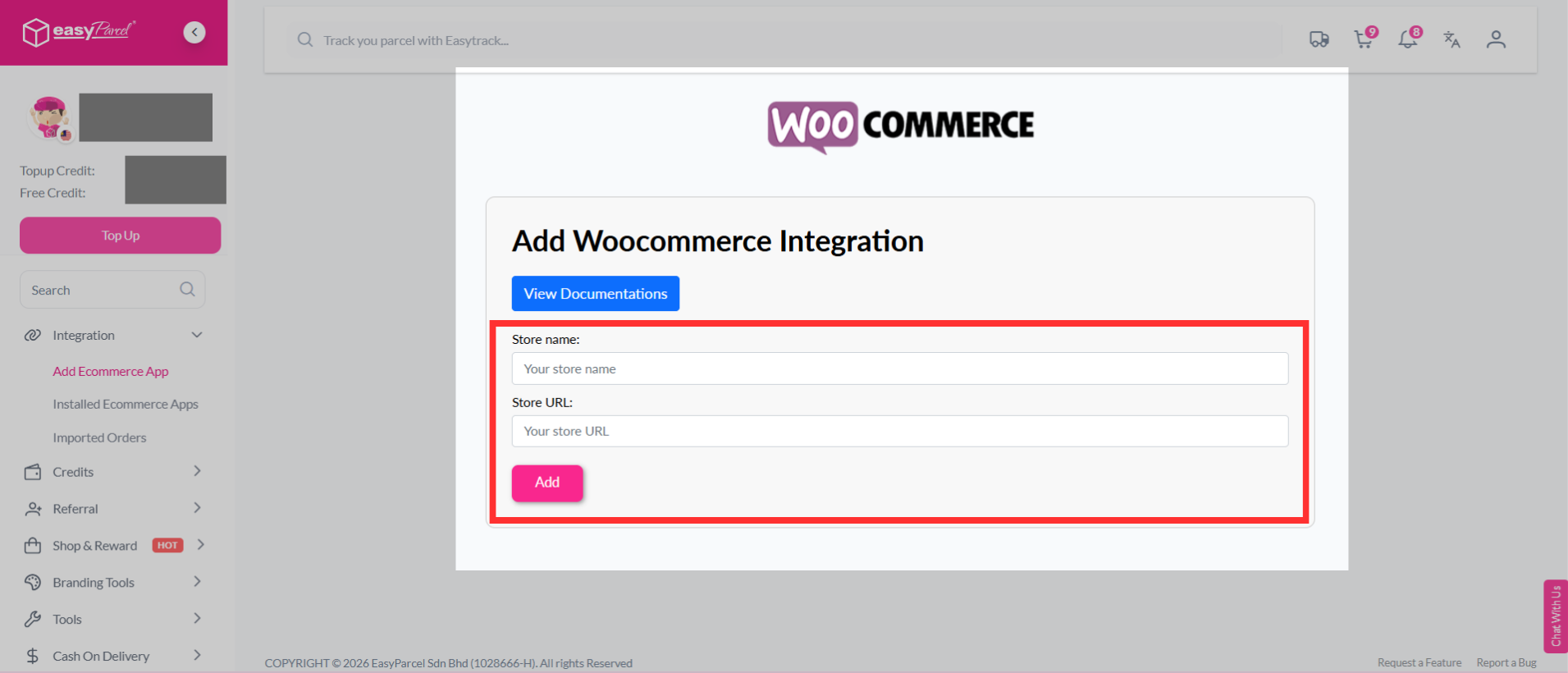
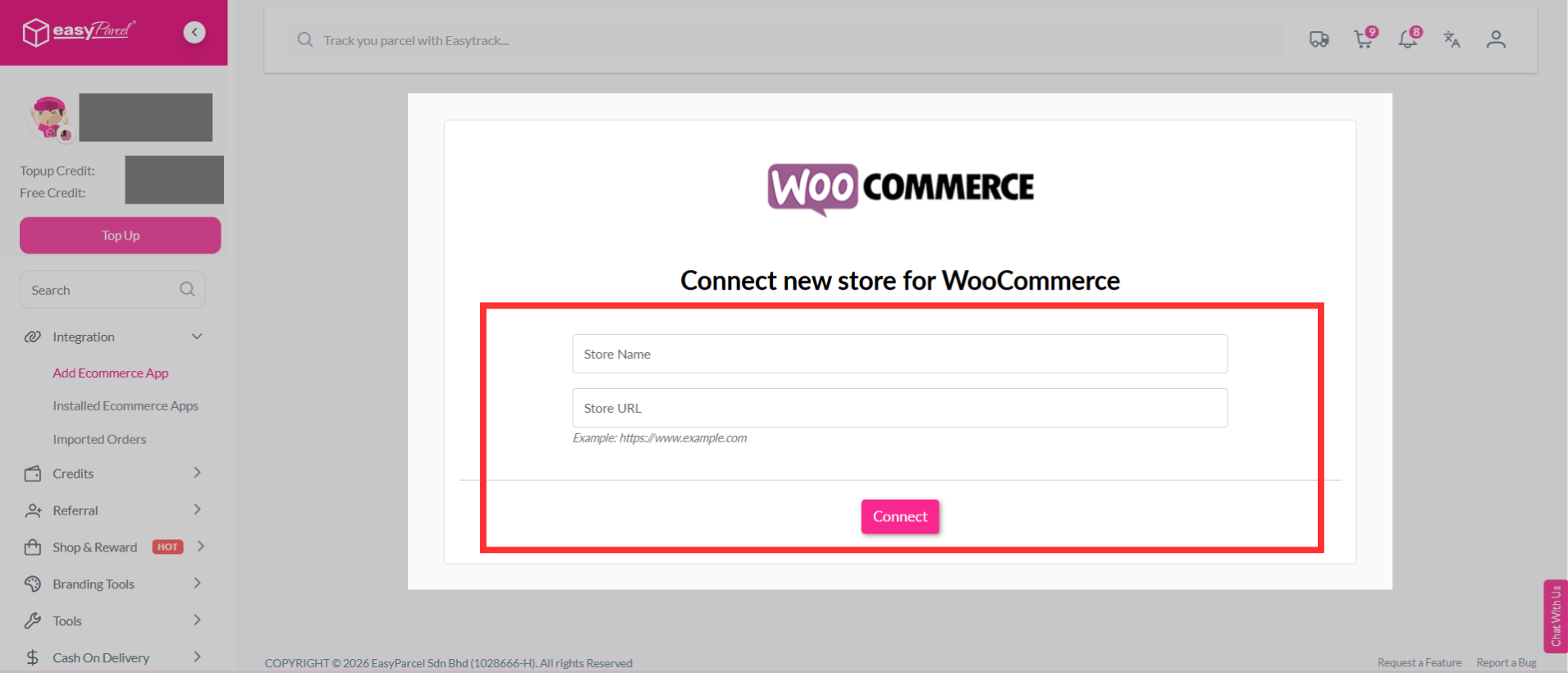
Step 2: Fill in your 'Shop Name' and 'Your WooCommerce Store URL'. 

Form fields to enter Shop Name and WooCommerce Store URL in EasyParcel

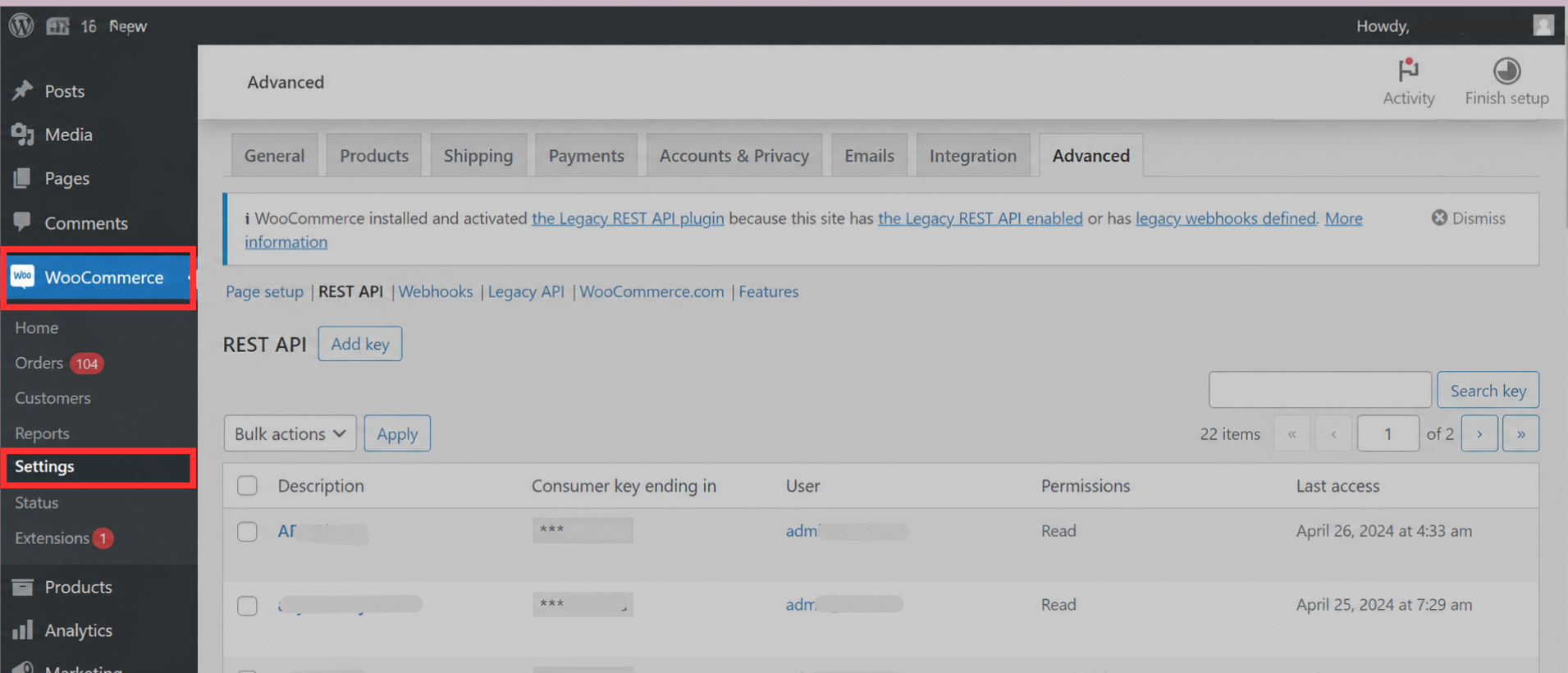
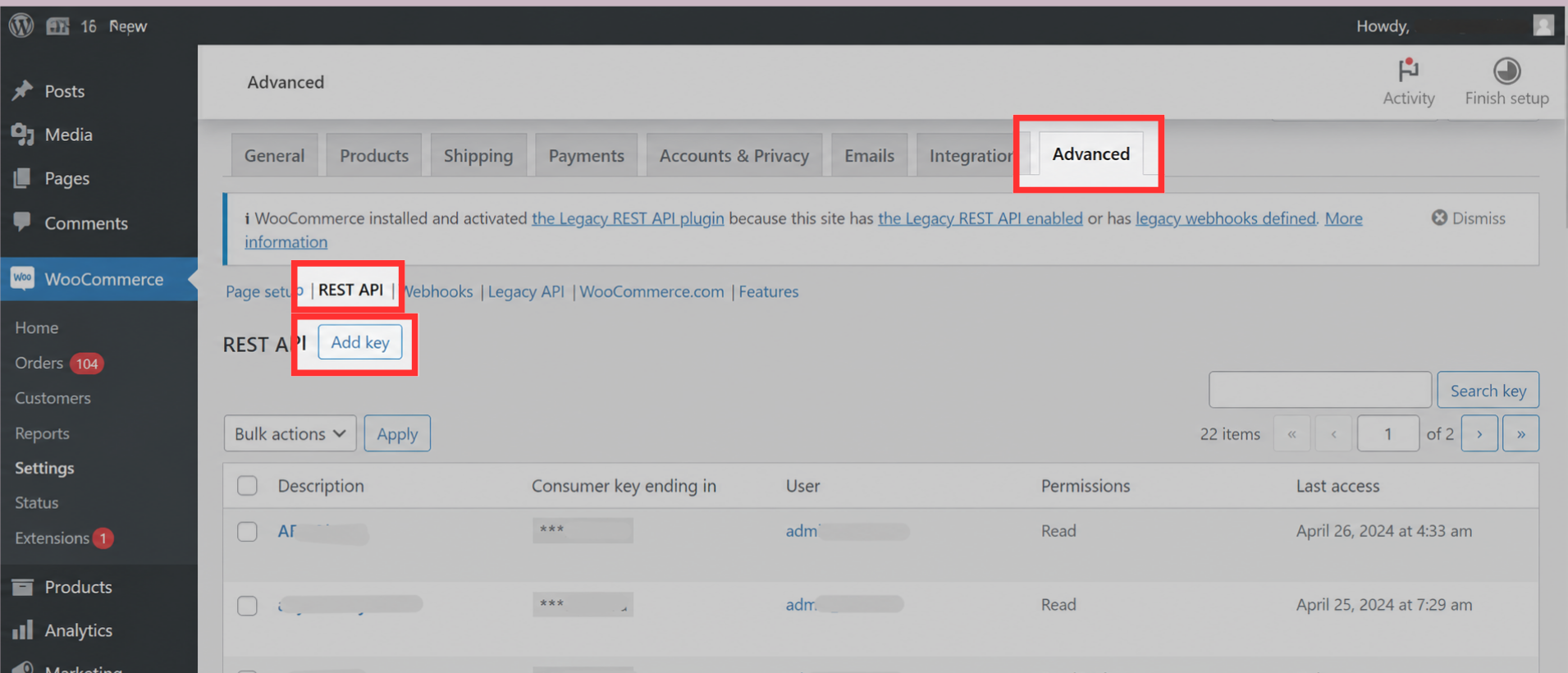
Step 3: Go to your WooCommerce Settings, click the 'Advanced' tab, click 'REST API', then click 'Add Key'.

WooCommerce settings showing Advanced tab and REST API section with Add Key

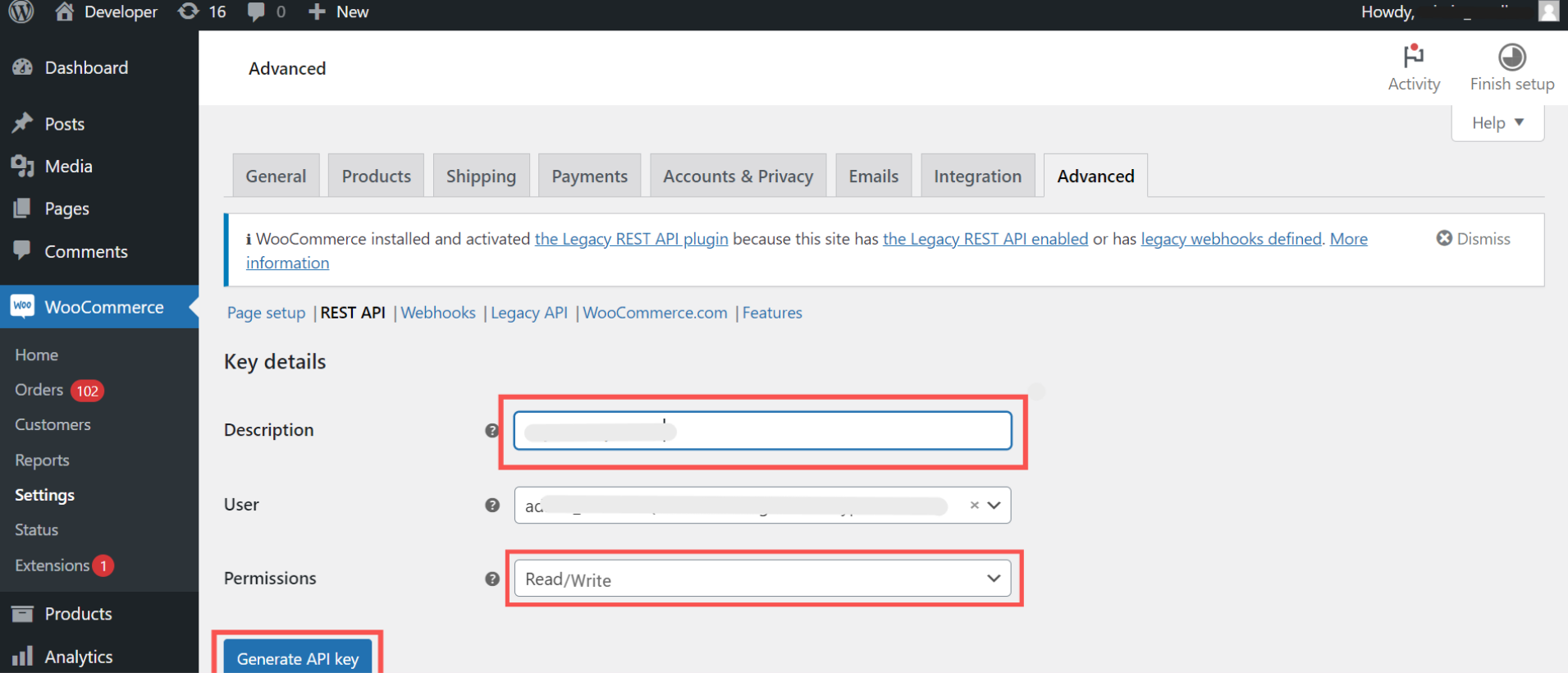
Step 4: Add a description for the key, change the permissions to "Read/Write" and click 'Generate API Key'.WooCommerce API key creation screen with Read/Write permissions selected

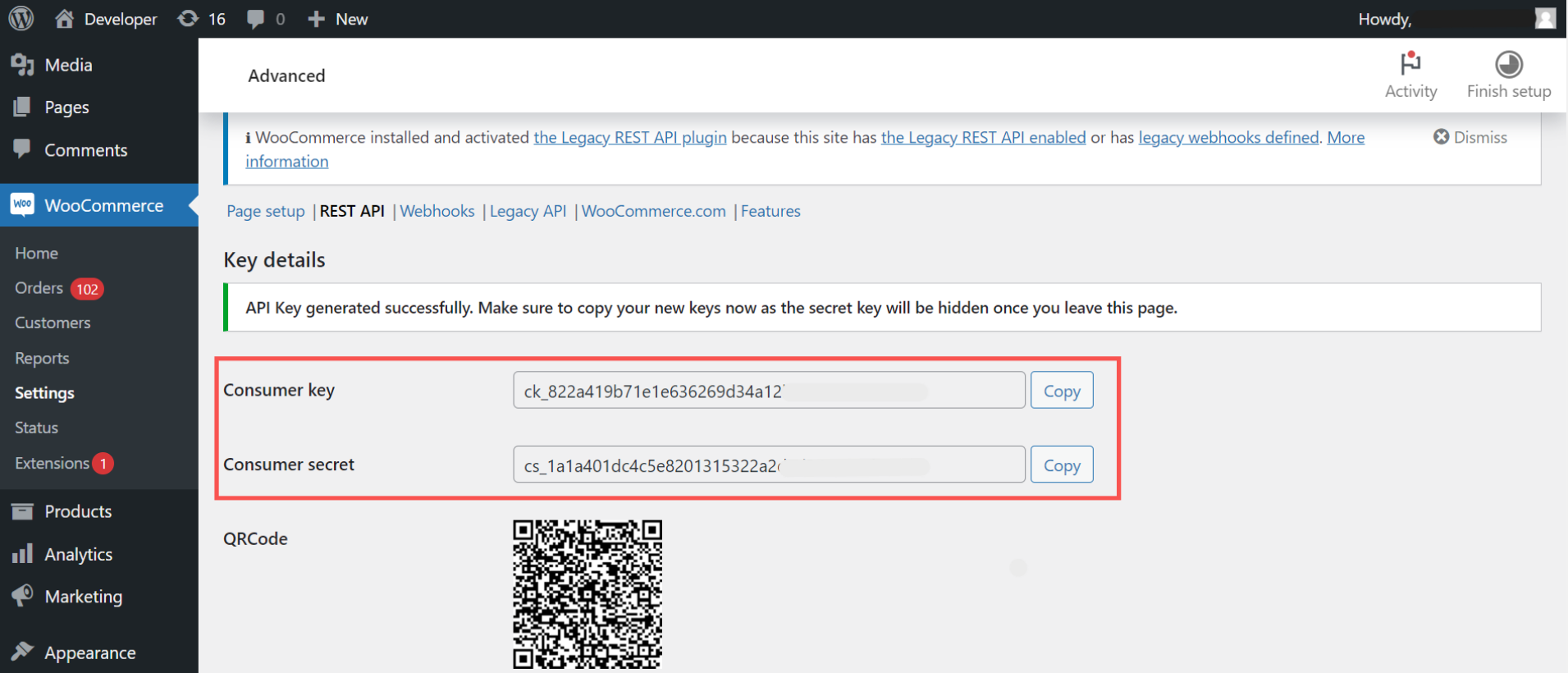
Generated WooCommerce consumer key and consumer secret displayed

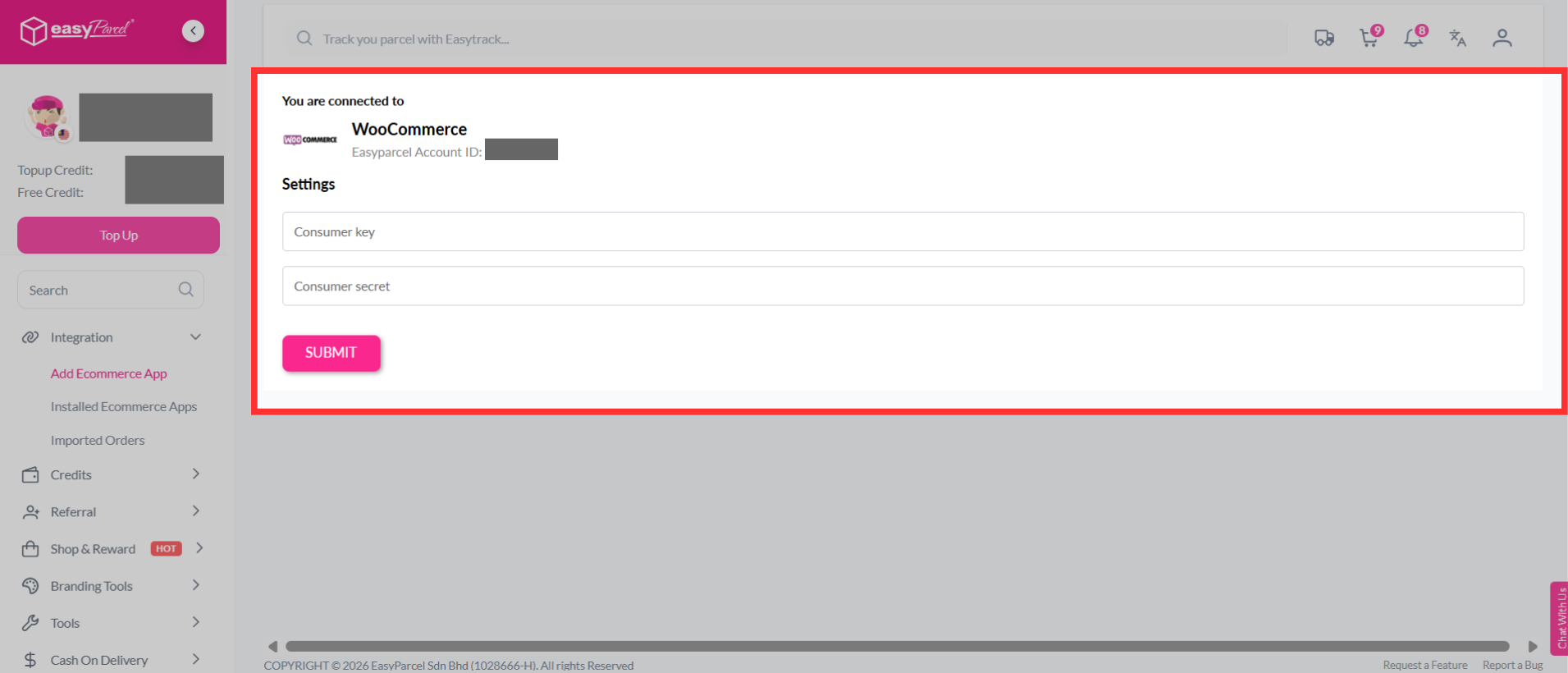
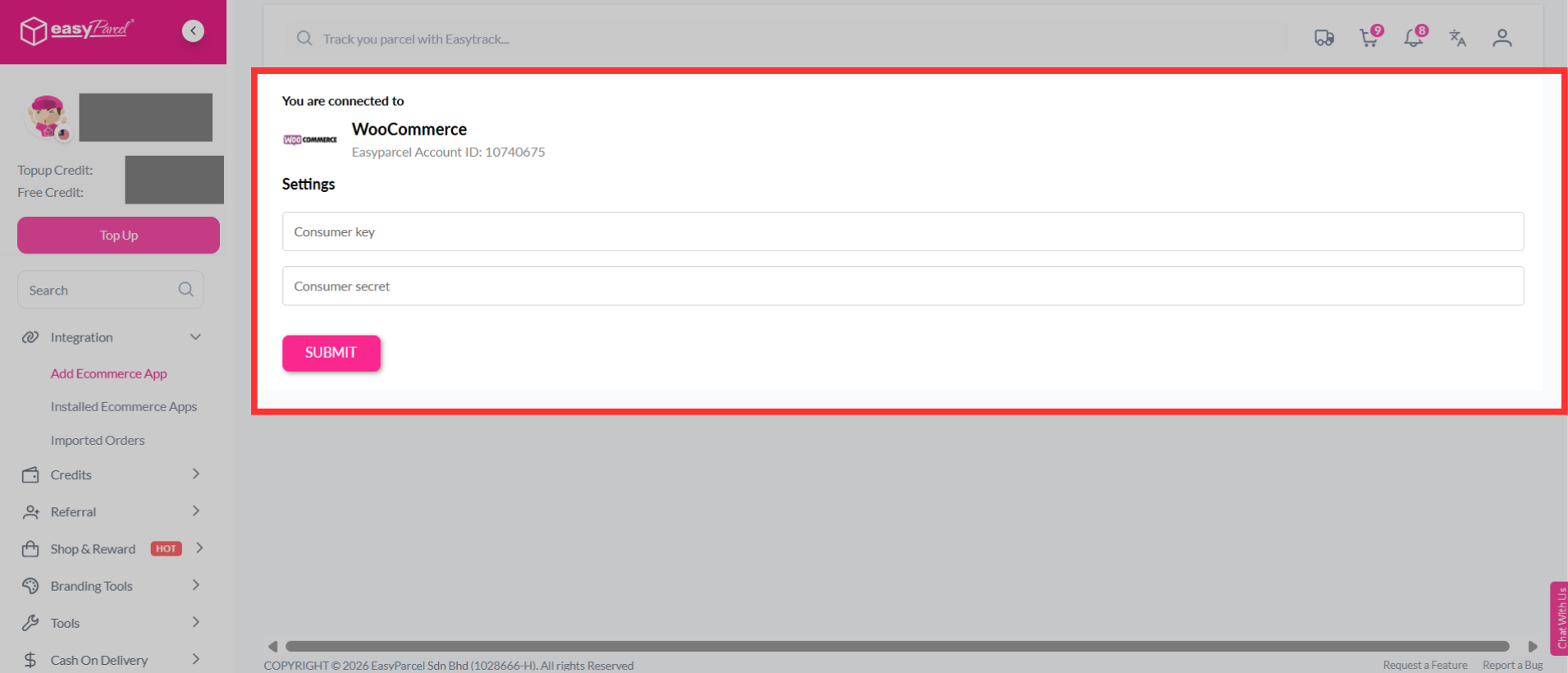
Step 5: Once the 'Consumer Key' and 'Consumer Secret' are created, you may copy and paste them into your EasyParcel account. 

EasyParcel integration fields for pasting WooCommerce consumer key and secret

Step 6: Paste your WooCommerce Consumer Key, WooCommerce Consumer Secret and choose Simple Version. Once done, you can hit 'Next Step'.

EasyParcel integration setup showing Simple Version selection and Next Step button

Step 7: Choose your preferred Weight Unit, Auto Import, Auto Merge and Item Category.

Settings screen for weight unit, auto import, auto merge, and item category options

Step 8: Here you can choose how your parcels will be sent by and the Courier Service Type.
i) Cheapest Service

Note: During the checkout process, the cheapest service available for the destination will be chosen. This also means the parcel will be available for pickup service.

Courier service type settings showing Cheapest Service option

ii) Courier Company

Note: You may choose your preferred courier service, that will be displayed on the checkout process. You can choose your main courier and its service type, as well as an alternative courier and its service type.

Courier company selection showing main and alternative courier options

Step 9: Turn on marketing tools to accelerate your delivery experience, then click 'Submit'.
Note: You may learn more on what marketing tools are available at EasyParcel and how they can help your brand.

Marketing tools toggle options with Submit button in EasyParcel integration setup

Step 10: Your store is now added to your EasyParcel account and ensure the button is enabled to import your orders.

Your Stores list showing WooCommerce store added and enabled for importing orders

Step 11: Go to your WooCommerce settings, click on the 'Advanced' tab, click 'LEGACY API', click to enable the legacy REST API, then click 'Save Changes'.

WooCommerce Legacy REST API setting enabled screen


1.2: Fulfillment on EasyParcel platform

To fulfil your order, simply do it from your EasyParcel account. Here's how:

Step 1: Go to 'Your Store' under Integrations, click the three-line option, and click 'Import'. A prompt will come up.

Your Store menu with Import option selected in EasyParcel

Step 2: If you have orders ready, a pop-up for 'Import Complete" will come up. You can click 'Check Imported Orders'.

Import Complete pop-up with Check Imported Orders button

Note: If you have no orders ready, a pop-up will say, "Do not have any new items yet'.

No new items pop-up shown when there are no orders to import

Note: To ensure your order imports are successful, kindly ensure that:
✅your order status is on hold; you may change the order status to 'Processing' to continue importing your orders,

✅your order has been modified within the last 7 days &

✅your order has not been imported to EasyParcel account yet.

Imported orders list screen showing selectable items

Step 3: Check out the imported orders, select items you want to add to the cart, and click 'Add to Cart' when you're ready to make payments.

Add to Cart button for selected imported orders

Step 4: Click OK at the pop-up message.

Confirmation pop-up with OK button


2. Plugin Version (Seamless)

2.1: Set Up WooCommerce Integration

Step 1: Log in to your EasyParcel account, go to 'Integration', click on 'Add New Store' and click 'WooCommerce'.

EasyParcel integrations page showing Add New Store and WooCommerce option for plugin version

Step 2: Fill in your Shop Name and 'Your WooCommerce Store URL'.

Form fields to enter shop name and WooCommerce store URL for plugin version

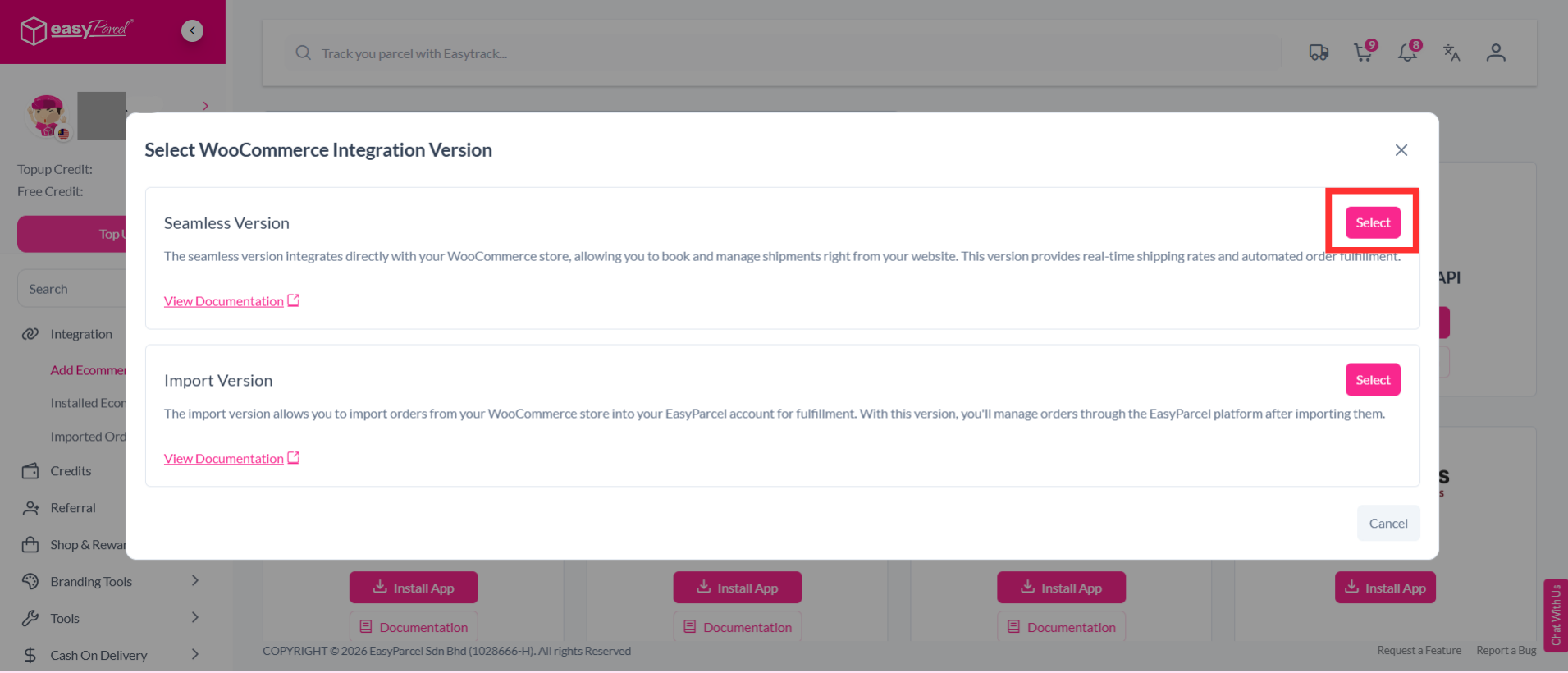
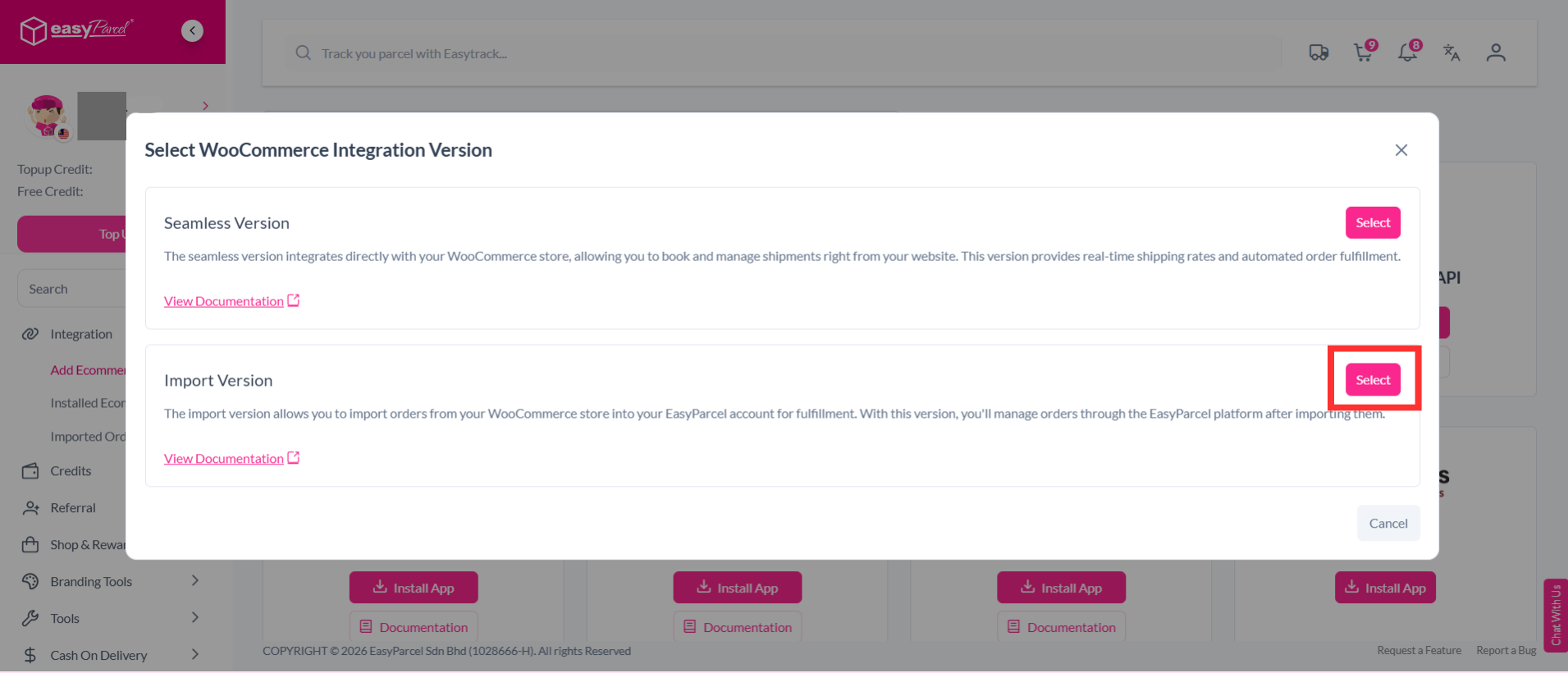
Step 3: Choose Plugin version

Integration setup screen with Plugin version selected

Step 4: hit the 'Version to download' drop-down to choose the latest version available.

Version to download dropdown showing available plugin versions

Step 5: Hit 'Download'.  

Download button for EasyParcel WooCommerce plugin

Step 6: Click 'Submit'.

Submit button to complete plugin version setup

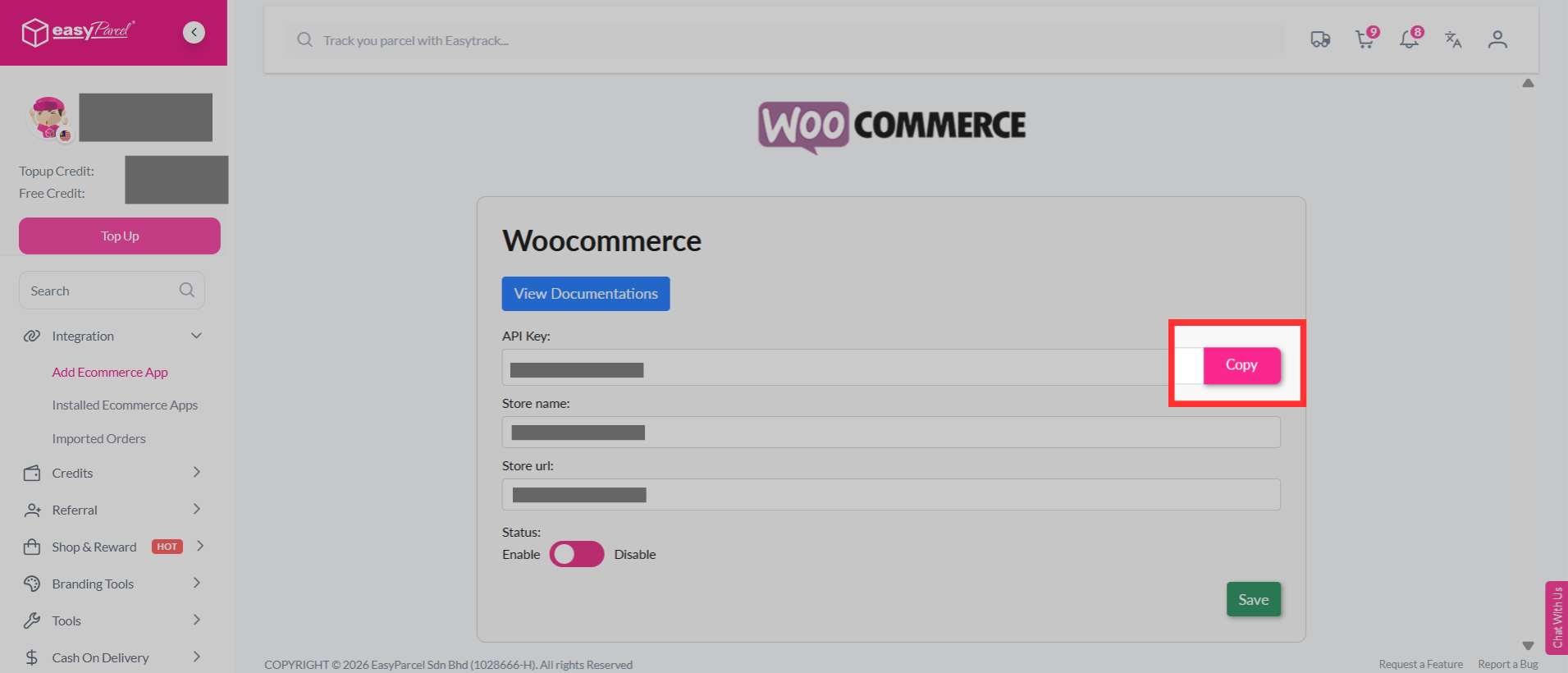
Step 7: Copy your integration ID from here. You can also access your integrated stores from 'Your Store'.

Integration details screen showing integration ID to copy


2.2: Download and activate EasyParcel plugin to WooCommerce

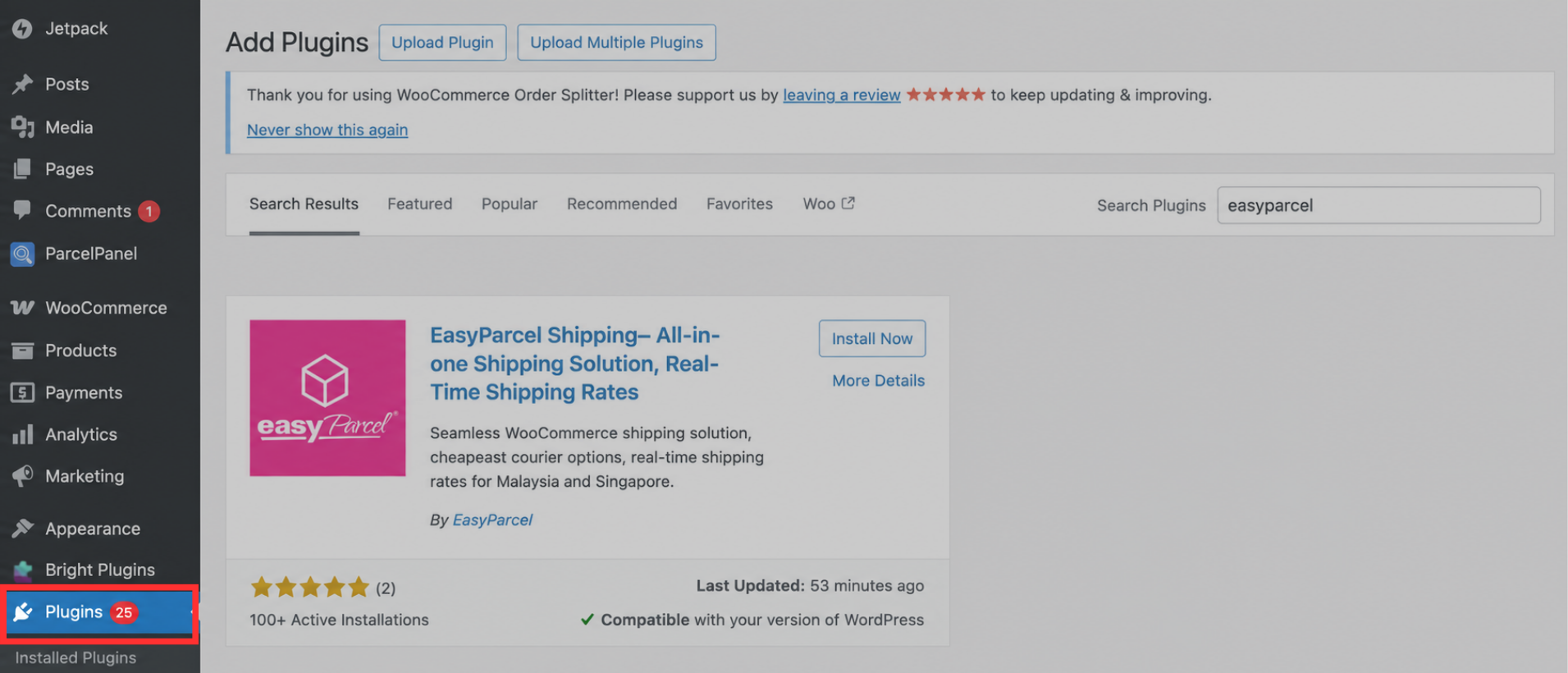
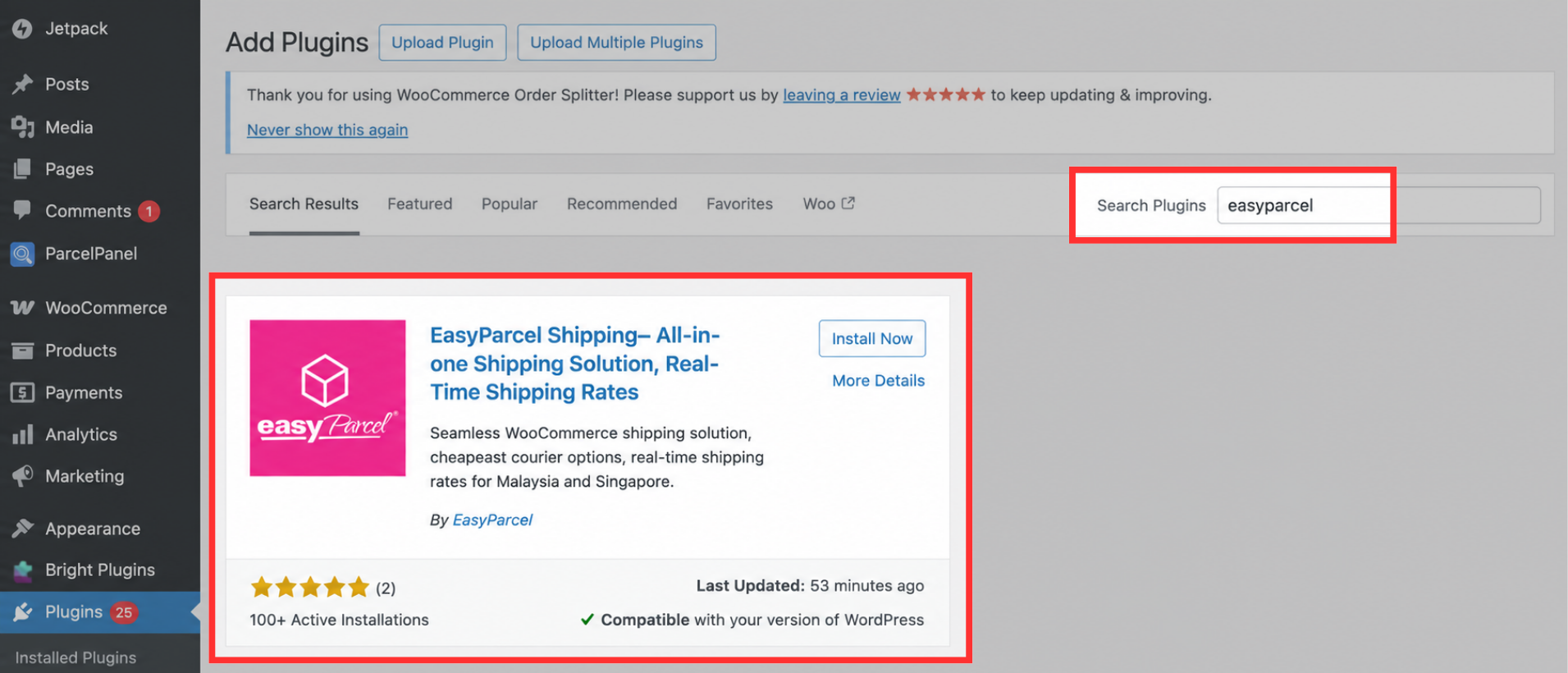
Step 1: Go to your WooCommerce admin panel, click 'Plugin' then click 'Upload Plugin'.

WooCommerce plugins page showing Upload Plugin button

Step 2: Click 'Choose File', then choose the file you just downloaded from Step 6.

WooCommerce upload plugin screen with Choose File option

Step 3: Click 'Install Now'.

WooCommerce plugin upload screen with Install Now button

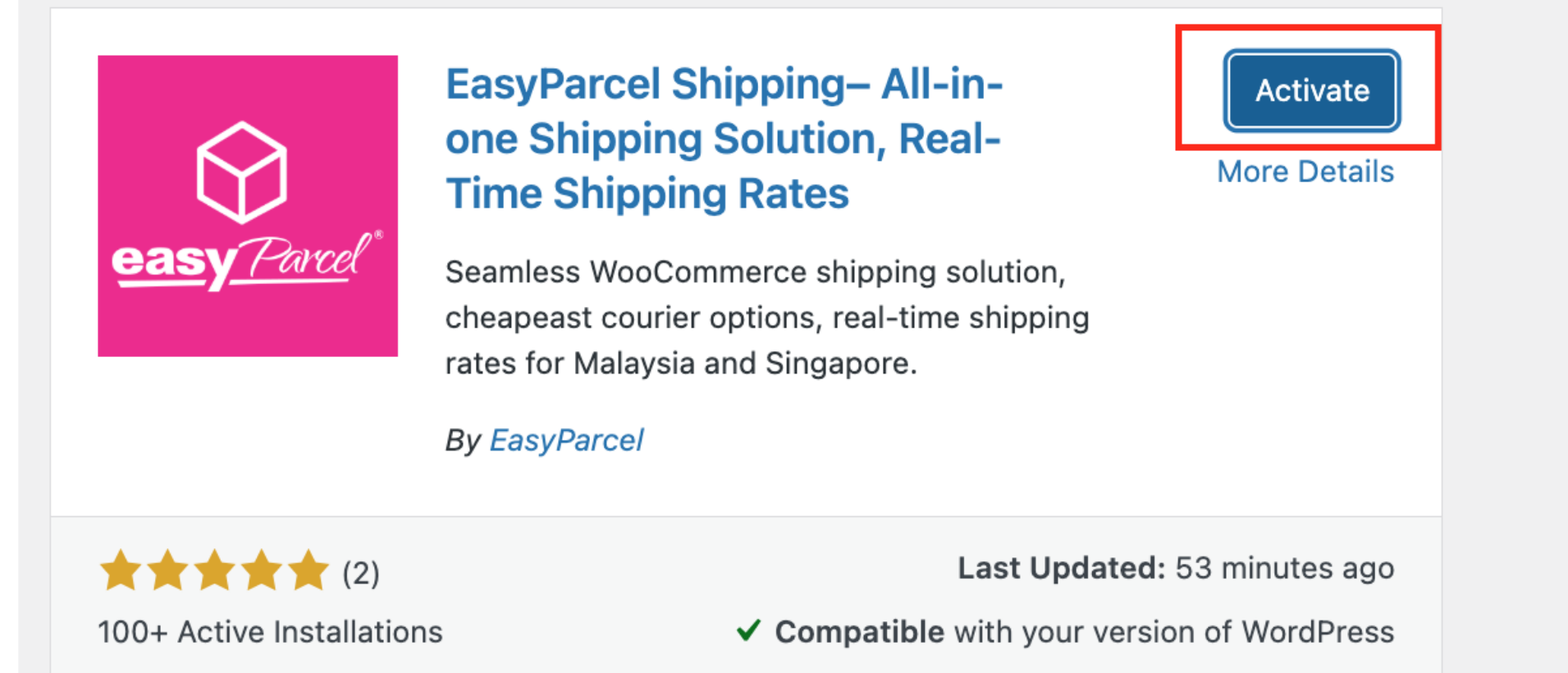
Step 4: Click 'Activate Plugin'.

WooCommerce plugins list showing Activate Plugin button


2.3: Rates at checkout page for WooCommerce

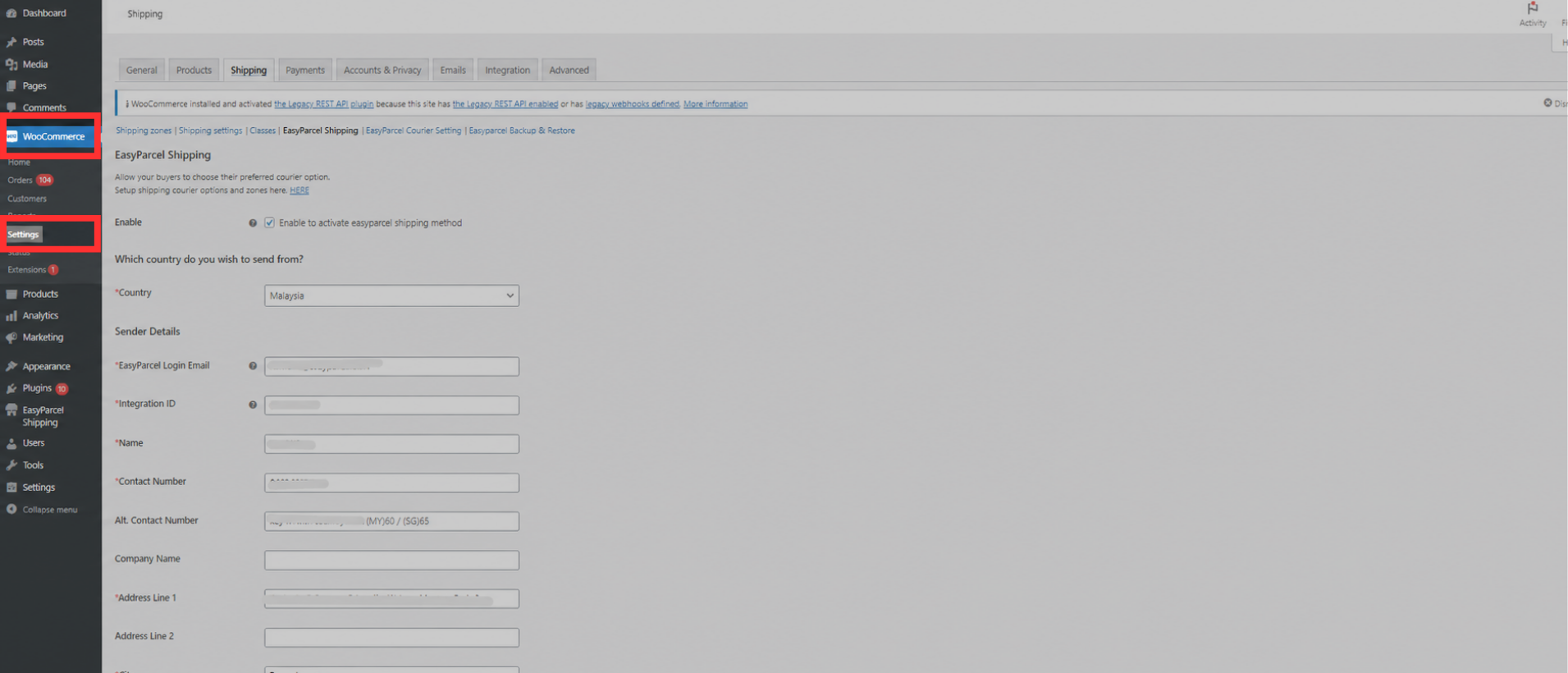
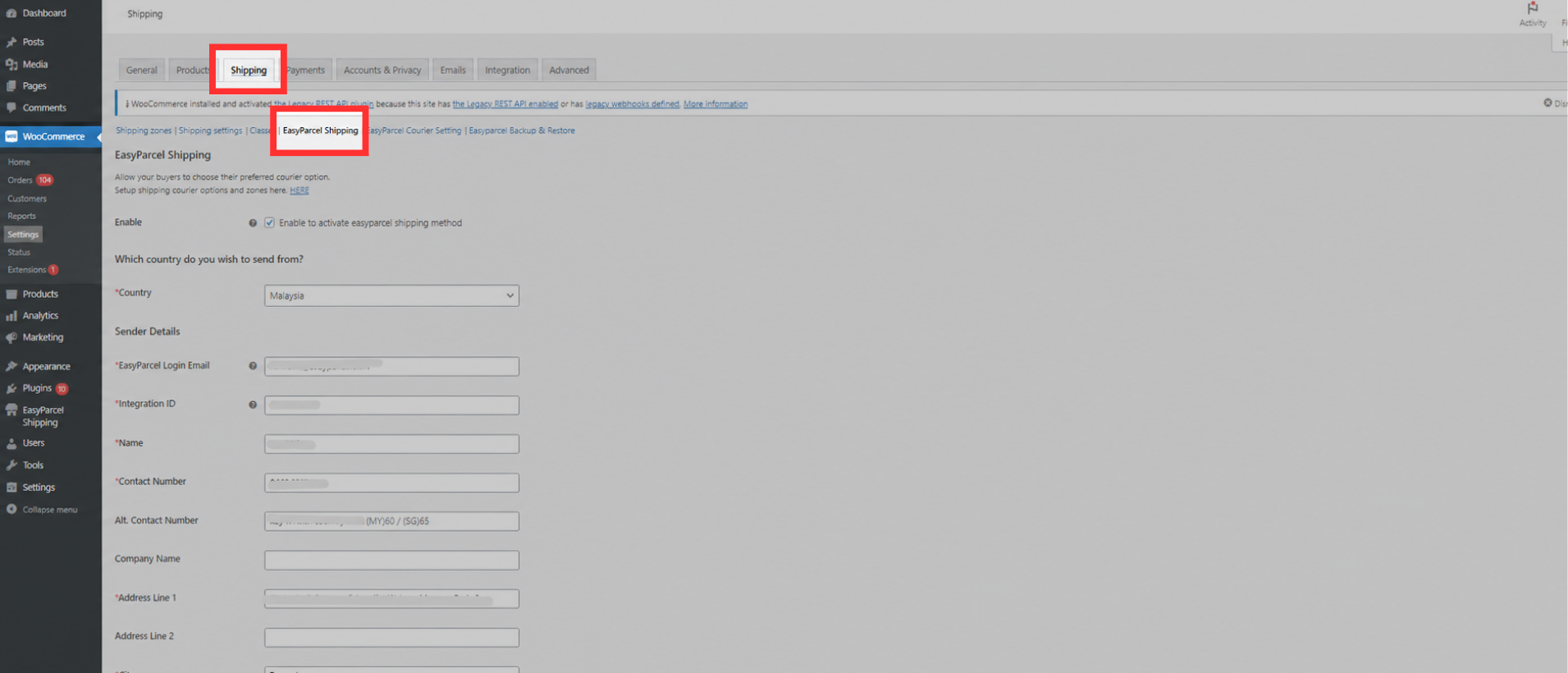
Step 1: Go to your WooCommerce settings, click the 'Shipping tab', then click 'EasyParcel Shipping'. Fill in your details and click 'Save changes'.

Note: After filling out your address details, you may want to recheck it again to confirm the information, as quote rates will be based on the address you provided here.
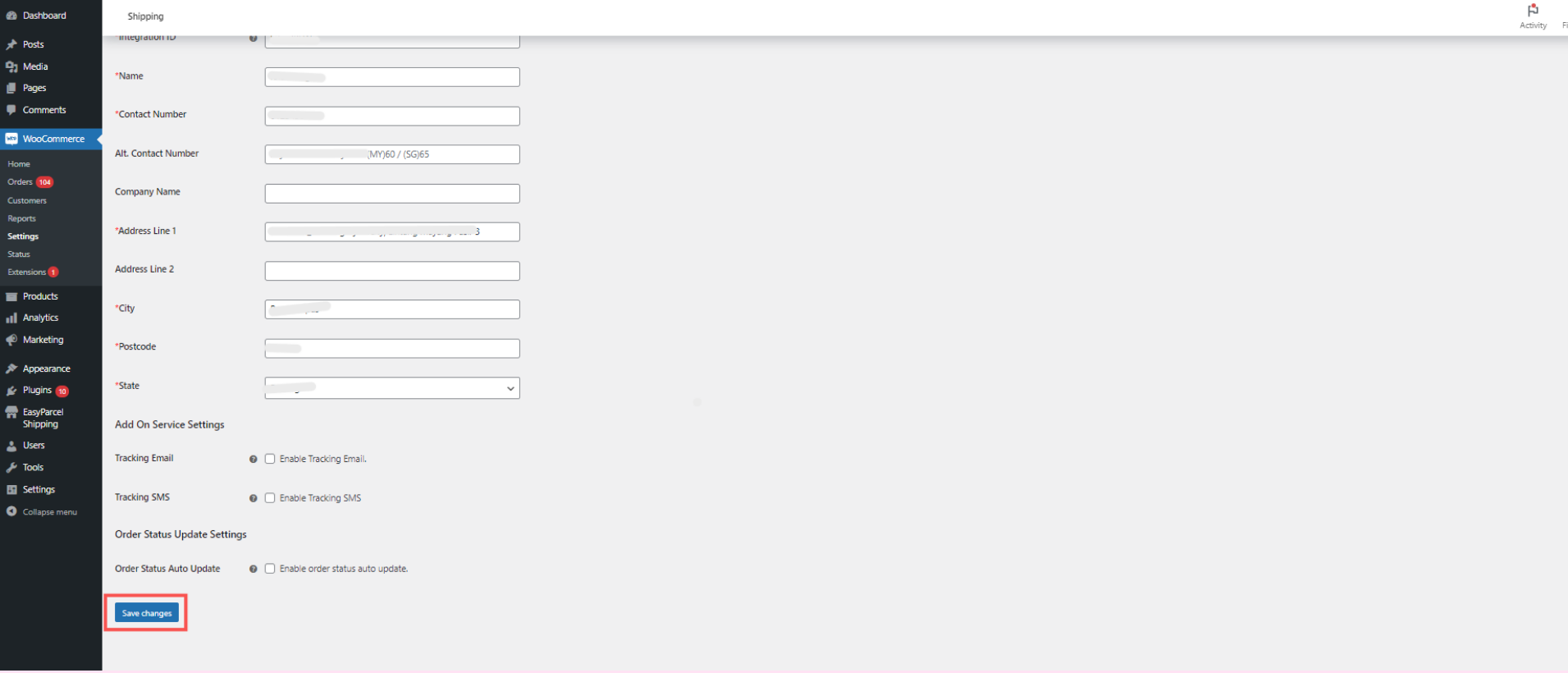
WooCommerce shipping settings showing EasyParcel Shipping configuration fields

WooCommerce EasyParcel Shipping settings screen showing saved configuration

Step 2: Under the same 'Shipping' tab, click 'Shipping zones' then click 'Add zone'. 

Note: You can enjoy multiple zone setups where you can easily classify your customers based on their locations, whether international or domestic. This will help cater to your different online store audience and streamline your checkout process. 

WooCommerce shipping zones page showing Add zone button

Step 3: Give your zone a name, choose zone regions and click 'Add shipping method'.

Shipping zone setup showing zone name, regions, and Add shipping method option

Step 4: Choose EasyParcel shipping and click 'Continue'.

Add shipping method dialog with EasyParcel shipping selected

Step 5: Ensure the 'Enable' button is turned on, then click 'Save changes'.

EasyParcel shipping method settings with Enable toggle and Save changes

Step 6: Under the same 'Shipping' tab, click 'EasyParcel Courier Setting', then click 'Add Courier Setting'.

Note: This step allows EasyParcel to integrate seamlessly, where it'll unlock access to courier availability, preferred shipping rate options, real-time tracking and more. Please note that it's important that the zones you set in this step match Step 2 above.

WooCommerce EasyParcel Courier Setting page showing Add Courier Setting button

Step 7: Fill in Zone Name, Destination and click 'Add courier service'.

Courier setting form with zone name, destination, and Add courier service

Step 8: Choose your preferred courier service in the drop-down.

i) All couriers or

Note: Any couriers that fit and are available for the destinations during the checkout process will appear for your customers to choose.

Courier selection dropdown showing All couriers option

How your checkout page would look like:

WooCommerce checkout page showing multiple courier options

ii) Specific courier or

Note: You can choose a specific courier that you prefer. Then, in the 'Courier Display Name', you may choose what name you'd like your customers to see at the checkout.

Courier selection dropdown showing specific courier option and display name field

How your checkout page would look like:

WooCommerce checkout page showing a single selected courier option

iii) Cheapest Courier

Note: This will streamline your process of choosing couriers one by one. By choosing this option, the system will automatically find the cheapest courier to deliver to the customer's destination during checkout.

Courier selection dropdown showing Cheapest courier option

How your checkout page would look like:

WooCommerce checkout page showing automatically selected cheapest courier option

Step 9: Choose your preferred shipping rate setting, then click 'Save changes'.Shipping rate setting options screen with Save changes button

i) EasyParcel Member Rate or

Note: You may choose this option if you would like your customers to view and pay the shipping rate based on your EasyParcel membership rate only.

Shipping rate option showing EasyParcel Member Rate selection

ii) Add on EasyParcel Member Rate or

Note: You may choose this option if you would like your customers to view and pay the shipping rate of your EasyParcel membership rate plus an amount that you can set up. You may choose 'Add On By Amount' or 'Add On By Percentage' and state the value in the space provided. 

Shipping rate option showing Add on by amount or percentage fields

iii) Flat Rate

Note: You may choose this option if you would like to simply set up a fixed amount for the shipping fee that your customers can pay at the checkout.

Shipping rate option showing Flat Rate field


2.4: Fulfillment on WooCommerce

(Single Fulfilment)

Step 1: To fulfill your order, simply click on your order details.

WooCommerce order list showing an order selected to open details

Step 2: Check on the shipping details and click 'Fulfill Order'.Order details page showing Fulfill Order button

Step 3: Once fulfilled, you can download the shipment Air Waybill (AWB).Fulfilled order screen showing option to download Air Waybill (AWB)

(Bulk Fulfilment)

Step 1: Select the orders you want to fulfil, click the drop-down button, choose 'Order Fulfillment' then click 'Apply'.

Bulk actions dropdown showing Order Fulfillment option and Apply button

Step 2: Choose your preferred couriers in the drop-down.

Courier selection dropdown for bulk fulfillment

Step 3: Choose Drop off/Pick Up date and click 'Fulfill Order'.

Bulk fulfillment screen showing pickup or drop-off date selection and Fulfill Order button

Step 4: Select the orders you want AWB in bulk, in the drop-down, click 'Download Bulk AWBs' and hit 'Apply'.

Bulk actions dropdown showing Download Bulk AWBs option

Note: The status will automatically turn to 'Completed' once done.

Order status screen showing Completed status after fulfillment


And there you have it! You've just mastered integrating EasyParcel with WooCommerce. We're really excited for you! We hope this guide was helpful but if you still have questions, don't worry – we've got you covered. Check out our other articles or reach out to our friendly support team. We're happy to help you every step of the way!


J
Jenny is the author of this solution article.

Did you find it helpful? Yes No

Send feedback
Sorry we couldn't be helpful. Help us improve this article with your feedback.